
Why each platform wants a different shape
Image sizes follow the screen and the scroll. Instagram, Facebook and LinkedIn show posts in a vertical feed on a phone, so a 4:5 portrait image takes up more of the screen than a square or a landscape image without forcing a crop. TikTok and Stories fill the entire phone screen, so 9:16 is the native shape. Pinterest shows Pins in a multi-column grid where tall images stand out, so 2:3 is its standard. YouTube is built around the 16:9 video player, so thumbnails and banners follow that ratio.
Width is the second half of the equation. Most networks display feed images at around 1080 pixels wide on modern phones, and anything wider is downsized on upload. Sending a 6000-pixel camera file does not make a post sharper; it only gives the platform more to throw away during recompression. The best results come from exporting at the display width with a high quality setting, then letting the platform do as little as possible.
Resizing for several networks is a repeatable job, which makes it a natural fit for batch processing images on a Mac: the rules are fixed per platform, and only the files change from campaign to campaign.
- Vertical feeds: 4:5 gives the most screen space without being cropped in the feed.
- Full-screen formats: 9:16 for Stories, Reels, TikTok and full-screen Pins.
- Grid feeds: Pinterest's 2:3 standard stands out in a multi-column layout.
- Video platforms: 16:9 for YouTube thumbnails, banners and most X images.
Instagram image sizes
Instagram displays feed photos at 1080 pixels wide. Portrait 4:5 at 1080 × 1350 remains the best default for photos, square 1:1 at 1080 × 1080 is still the safest shape for graphics, and landscape posts sit at 1.91:1, or 1080 × 566. Instagram's help page now also lists heights up to 1440 pixels, which is the 3:4 shape used by the profile grid. Stories and Reels are 1080 × 1920 at 9:16.
The profile grid matters for brands. Instagram shows grid thumbnails at 3:4, so a square post loses about a quarter of its width in the grid preview, while a 4:5 post loses only a thin slice from each side. The full walkthrough, including carousel rules and Story safe zones, is in the guide to resizing photos for Instagram feed and Stories.
TikTok image sizes
TikTok photo posts, also called photo mode or carousels, are designed for a full-screen vertical view, so 1080 × 1920 at 9:16 fills the screen edge to edge. TikTok lets you add up to 35 photos to one post, and its developer documentation lists JPEG and WebP as accepted photo formats, up to 1080p and 20 MB per image.
Square and landscape photos still upload, but they appear smaller with empty space around them. The caption, sound label and action buttons sit on top of the image at the bottom and on the right, so text needs to stay toward the upper middle of the frame. The full TikTok photo size guide covers safe zones, the 4:5 alternative some creators use, and profile photos.
Pinterest image sizes
Pinterest recommends a 2:3 aspect ratio, or 1000 × 1500 pixels, for standard image Pins. Its Pin specs page also lists 1:2, 3:4, 4:5 and 1:1 as accepted ratios, but warns that Pins taller than 2:3 might get cut off in people's feeds. Image Pins can be BMP, JPEG, PNG, TIFF or WebP, with a 20 MB maximum for web uploads.
Pinterest converts every upload to an 8-bit RGB JPEG, so starting with a clean sRGB file avoids color shifts. Business accounts can add a profile cover, which Pinterest asks to be at least 800 × 450 pixels and recommends at 16:9. Board covers are picked from Pins already saved to the board. The details, including carousel Pins and text safe zones, are in the Pinterest Pin size guide.
LinkedIn image sizes
LinkedIn has more distinct image slots than any other network on this list. On a personal profile, the profile photo should be at least 400 × 400 pixels and the background photo 1584 × 396, both as JPG or PNG under 8 MB. On a company Page, LinkedIn recommends a 400 × 400 logo and a 4200 × 700 cover image, PNG or JPEG, no larger than 3 MB.
For posts, LinkedIn's help page says multi-photo posts can hold up to 20 images and render at most 4:5, so 1080 × 1350 is the tallest shape worth exporting. Landscape images at 1.91:1, such as 1200 × 627, match link previews and LinkedIn's own single-image ad recommendation. Article cover images are best at 1920 × 1080. The LinkedIn image size guide explains how the profile photo overlaps the background and how to plan document posts.
X (Twitter) image sizes
X recommends a 1500 × 500 header and a 400 × 400 profile photo. The header is a 3:1 strip, but X notes that part of it can be cropped depending on the display, so keep logos and text in the middle band. Profile photos accept JPEG, GIF or PNG, and animated GIFs are not supported as profile or header images.
Posts can carry up to four photos. X's help page lists photos up to 5 MB, and its creative guidance recommends 16:9 or 1:1 images, so 1600 × 900 or 1080 × 1080 are dependable exports. Multi-image posts are cropped into a grid in the timeline and show the full image when tapped. The X image size guide covers multi-image layouts and how timeline previews crop.
Facebook image sizes
Facebook feed images follow the same vertical logic as Instagram. Meta marks 4:5 as the recommended ratio for images in Facebook Feed, so 1080 × 1350 works for organic posts and 1440 × 1800 is Meta's figure for some ad objectives. Square 1080 × 1080 is a reliable fallback, and Facebook Stories use 1080 × 1920.
For Pages, Facebook recommends an 851 × 315 cover photo saved as an sRGB JPG, at least 400 × 150 pixels, and under 100 KB for the fastest loading. The profile picture displays at 176 × 176 on computers and 196 × 196 on phones, and overlaps the cover on mobile. The Facebook image size guide covers covers, events, groups and ads in detail.
YouTube image sizes
YouTube thumbnails are 1280 × 720 pixels at 16:9, at least 640 pixels wide and under 2 MB, as JPG, GIF or PNG. A JPEG at 85–90% quality lands far below that limit, while a photo saved as PNG at the same size can exceed it.
The channel banner is a large 16:9 image that is cropped very differently on TVs, desktops and phones. YouTube recommends 2560 × 1440, with a minimum upload of 2048 × 1152, a maximum of 6 MB, and a safe area of 1235 × 338 at the minimum size where text and logos always show. The profile picture is shown as a circle, so keep it simple and centered. For thumbnails, the YouTube thumbnail size guide has the safe zones and a full export routine.
- 1280 × 720YouTube thumbnail, under 2 MB
- 2560 × 1440Recommended channel banner
- 1235 × 338Banner safe area for text and logos
- 6 MBMaximum banner file size
One master export, many platforms: what to standardize
Teams that post to several networks save the most time by standardizing on a short list of output sizes. Four sizes cover most feeds: 1080 × 1350 for vertical posts on Instagram, Facebook and LinkedIn; 1080 × 1080 for square graphics; 1080 × 1920 for Stories, Reels, TikTok and full-screen Pins; and 1000 × 1500 for Pinterest. Add 1280 × 720 for YouTube and the occasional landscape link image, and nearly every post slot is covered.
Banners and headers are different. They appear once per profile, change rarely, and each has its own odd shape, so design them individually at the exact size rather than cropping them from a feed image. Keep the important content in the center, because every banner on this list is cropped on at least one device.
Always start from the edited originals. A 1080 × 1350 export resized again to 1080 × 1920 has to be enlarged and cropped twice, which softens it. Generating each ratio directly from the full-resolution master keeps every version sharp.
Before you export for social
- Edited originals at full resolution, in one folder
- Photos sorted by orientation so vertical and horizontal shots get suitable ratios
- Faces, products and text kept in the central area of every frame
- Colors exported in sRGB rather than Display P3 or CMYK
- HEIC files from iPhone converted to JPEG for schedulers and web uploads
- One output folder per platform and ratio, named clearly
How to resize a whole folder for every platform on a Mac
Preview on macOS can scale many images at once with Tools → Adjust Size, but it cannot crop a batch to 4:5, 9:16 or 2:3, so each crop has to be drawn by hand. Photos can crop one image at a time to presets such as Square, 8:10 and 16:9. The sips command in Terminal resizes in bulk but has no idea where a subject sits in the frame. These tools are fine for a handful of images and slow for a campaign.
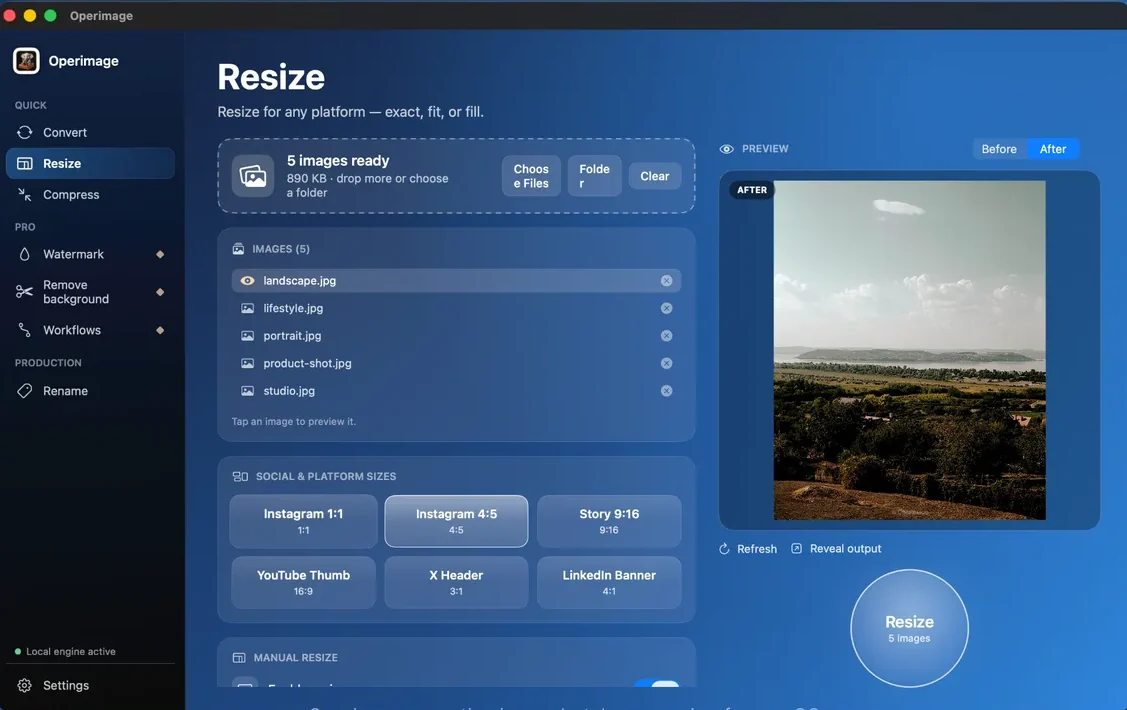
Operimage, a free Mac app, has social sizes built into its Resize tool. Open Resize, drop in the folder, and pick a preset under Social & platform sizes: Instagram 1:1, Instagram 4:5, Story 9:16, YouTube Thumb 16:9, X Header 3:1 or LinkedIn Banner 4:1. For sizes without a preset, such as Pinterest's 1000 × 1500 or LinkedIn's 4200 × 700 Page cover, choose Manual resize and type the exact width and height. Set the mode to Fill so every output is exactly the target size, then check the crops in the Before/After preview.
Click Resize and Operimage writes new copies, leaving the originals untouched; Reveal output opens them in Finder. Everything runs on your Mac, so unreleased campaign images are never uploaded to a resizing website. The general Fit versus Fill resizing guide explains the modes in more detail.
File size limits and compression
Pixel size and file size are separate limits. A 1280 × 720 YouTube thumbnail must stay under 2 MB, X lists 5 MB for photos, LinkedIn caps a profile background at 8 MB and a Page cover at 3 MB, and Pinterest allows 20 MB on the web. Facebook suggests keeping a Page cover under 100 KB for the fastest loading. A JPEG at 1080 × 1350 and 85% quality usually lands in the low hundreds of kilobytes, comfortably under every limit except Facebook's cover suggestion.
When a platform has a hard cap, compress to a target size rather than guessing a quality number. Operimage's Compress tool can search for the highest quality under a size budget; the guide to compressing images to an exact file size shows how. Strip location metadata before posting photos taken at home or at a client site, since many workflows keep EXIF data unless you remove it.
- YouTube thumbnail: under 2 MB.
- X photo: up to 5 MB, per X's help page.
- LinkedIn: 8 MB for profile images, 3 MB for Page logo and cover.
- Pinterest: 20 MB maximum for web uploads.
- Facebook Page cover: under 100 KB recommended for fast loading.
A repeatable multi-platform workflow
The most efficient setup is one source folder and one saved recipe per platform. In Operimage, a Workflow can chain resize, compress and rename, so a single drop produces the Instagram set, another produces the Pinterest set, and so on. Running each Workflow on the same edited originals guarantees every platform gets a first-generation copy.
If your images carry a logo, add the watermark to the whole batch after resizing so it sits at the same size and position on every output, and keep it away from the areas each app covers with buttons and captions. Finally, name files by platform and posting slot, such as 2026-10-launch-pin-01.jpg, so the right version reaches the right scheduler.
- 1Edited originalsFull resolution, sRGB
- 2Resize per platform4:5, 9:16, 2:3, 16:9 with Fill
- 3Compress + watermarkUnder each platform's file limit
- 4Rename and scheduleFolders per network
Step by step
Load the edited originals
Open Operimage, choose Resize in the sidebar, and drop in the finished photos or click Folder to load the whole campaign.
Pick a platform preset or type the size
Under Social & platform sizes choose Instagram 1:1, Instagram 4:5, Story 9:16, YouTube Thumb 16:9, X Header 3:1 or LinkedIn Banner 4:1. For other sizes, such as Pinterest 1000 × 1500, use Manual resize.
Use Fill and check the crops
Set the mode to Fill so every file is exactly the target size, then click through the list in the Before/After preview to make sure faces and text stay inside the frame.
Resize and reveal the output
Click Resize, then Reveal output to open the platform-ready copies in Finder. Originals stay untouched.
Save it as a Workflow
Save resize, compress and rename as a Workflow for each network so the next campaign takes one drop and one click.
FAQ
What is the best image size for social media in 2026?
There is no single size, but 1080×1350 (4:5) works for feed posts on Instagram, Facebook and LinkedIn, and 1080×1920 (9:16) works for Stories, Reels and TikTok. Pinterest prefers 1000×1500 (2:3) and YouTube thumbnails use 1280×720.
What size image works on all social media platforms?
A 1080×1080 square displays on every feed without being rejected, but it is not the best fit anywhere. For better results, export a 4:5 version for feeds and a 9:16 version for full-screen formats.
What is the best aspect ratio for social media posts?
4:5 is the best general aspect ratio for feed posts because it fills more of a phone screen than square or landscape images. Use 9:16 for full-screen formats and 2:3 for Pinterest.
Why do my images look blurry on social media?
Platforms resize and recompress uploads. Images smaller than the display width get enlarged and look soft, and very large images get heavily recompressed, so export at the recommended size with high JPEG quality.
What size should a social media banner be?
Each network differs: X headers are 1500×500, LinkedIn profile backgrounds are 1584×396, Facebook Page covers are 851×315 and YouTube banners are 2560×1440 with a 1235×338 safe area.
Should I upload PNG or JPG to social media?
Use JPG for photos because it keeps files small and platforms convert most uploads to JPEG anyway. Use PNG for flat graphics with sharp text if the file stays within the platform's size limit.
How do I resize images for multiple social media platforms at once?
Use a batch resizer with platform presets. Operimage, a free Mac app, resizes a whole folder to Instagram, Story, YouTube, X and LinkedIn presets or any manual size, entirely on your Mac.
Social media image sizes 2026: the cheat sheet
The table below lists the image sizes that matter most on the seven biggest networks in 2026: Instagram, TikTok, Pinterest, LinkedIn, X, Facebook and YouTube. Each size is the platform's own recommendation where one exists, or the widely used export size that matches the platform's stated ratio and width. All sizes are in pixels, width first.
Three patterns explain almost every row. Feed posts are 1080 pixels wide on most networks, because that is the width phones actually display. Vertical formats win attention: 4:5 for feed posts and 9:16 for full-screen Stories, Reels and TikTok photos. Banners and headers are very wide strips that get cropped differently on phones, desktops and TVs, so they all come with safe areas.
If you only remember one rule: export at the platform's recommended pixel size rather than letting the platform resize for you. A file that is already the right shape is not cropped, and a file that is already the right width is not recompressed as heavily.
Social media image sizes, October 2026 (pixels)