LinkedIn image sizes in 2026 at a glance
LinkedIn uses different image sizes for personal profiles, company Pages, feed posts, articles and ads. The official recommendations are 400 × 400 pixels or larger for the profile photo, 1584 × 396 for the profile background, 400 × 400 for a company logo, 4200 × 700 for a Page cover and 1920 × 1080 for an article cover. Feed images can be landscape, square or portrait up to 4:5.
File limits differ by slot: profile photos and backgrounds can be up to 8 MB, Page logos and covers up to 3 MB, and single-image ads up to 5 MB. The table lists every slot; for how LinkedIn compares with Instagram, TikTok, X and the rest, see the complete social media image size cheat sheet.
LinkedIn image sizes
| Placement | Size (px) | Ratio | Notes |
|---|---|---|---|
| Profile photo | 400 × 400 or larger | 1:1 | Accepted up to 7680 × 4320; 8 MB max; shown as a circle |
| Profile background | 1584 × 396 | 4:1 | JPG or PNG under 8 MB |
| Page logo | 400 × 400 | 1:1 | 268 × 268 minimum; PNG or JPEG, 3 MB max |
| Page cover | 4200 × 700 | 6:1 | PNG or JPEG, 3 MB max; may be trimmed on some screens |
| Post image, landscape | 1200 × 627 | 1.91:1 | Also the link-preview shape |
| Post image, square | 1080 × 1080 | 1:1 | Displays the same on desktop and mobile |
| Post image, portrait | 1080 × 1350 | 4:5 | Tallest ratio LinkedIn renders in multi-photo posts |
| Article cover | 1920 × 1080 | 16:9 | Up to 7680 × 4320 |
| Single-image ad | 1200 × 627 | 1.91:1 | Also 1:1 and 4:5; JPG, PNG or GIF up to 5 MB |
| Document post | One file | Any | PDF, PPT, PPTX, DOC or DOCX; 100 MB and 300 pages max |
- Profile background1584 × 396 · 4:1
- Page cover4200 × 700 · 6:1
- Landscape post1200 × 627 · 1.91:1
- Portrait post1080 × 1350 · 4:5
- Article cover1920 × 1080 · 16:9
LinkedIn profile photo and background sizes
LinkedIn accepts profile photos between 400 × 400 and 7680 × 4320 pixels, up to 8 MB. Upload a square image of at least 400 × 400 pixels; a larger square, such as 800 × 800, keeps the photo crisp on high-resolution screens. The photo is shown as a circle, so center your face and leave some space above your head so the crop does not cut it off.
The profile background, which LinkedIn's help pages also call the cover image, is 1584 × 396 pixels, a 4:1 strip. LinkedIn recommends JPG or PNG under 8 MB and resizing the image as close to that size as possible. A photo that is the wrong shape is cropped, usually from the top and bottom, which tends to cut off text.
The profile photo overlaps the lower-left part of the background on both desktop and mobile, and buttons and your name sit below it. Put text, logos and the most important part of the image in the right half or the center of the banner, never in the lower-left corner.
- Profile photo: square, 400 × 400 px minimum, under 8 MB; face centered.
- Background: 1584 × 396 px, JPG or PNG under 8 MB.
- Overlap: the profile photo covers the lower-left of the background, so keep that area free of text.
- Headshots: a clean, plain background reads best at small sizes.
Company Page logo and cover sizes
For company Pages, LinkedIn recommends a 400 × 400 pixel logo, with 268 × 268 as the minimum, and a 4200 × 700 pixel cover image. Both must be PNG or JPEG and no larger than 3 MB. The logo appears on light and dark backgrounds, and a transparent logo is shown on white, so make sure it stays legible in both settings.
LinkedIn notes that the Page cover can be adjusted to fit the screen, which may trim it horizontally or vertically. Keep key details away from the edges. Many older guides still list 1128 × 191 for company covers; the current help page recommends 4200 × 700, which keeps the same wide shape at a much higher resolution.
The 3 MB limit is the one people hit most. A 4200 × 700 JPEG at high quality is usually well under it, but a PNG with photographic content can go over. If an upload fails, export JPEG or compress to a target size; the guide to compressing to an exact file size shows how to stay under a hard limit without guessing.
- 4200 × 700Page cover, PNG or JPEG
- 400 × 400Page logo (268 × 268 minimum)
- 3 MBMaximum for Page images
- 8 MBMaximum for profile photo and background
LinkedIn post image sizes
LinkedIn accepts landscape, square and portrait images in posts. A multi-photo post can hold up to 20 photos, and LinkedIn's help page says images render at a maximum ratio of 4:5, so 1080 × 1350 is the tallest shape worth exporting. Anything taller is cropped in the feed.
Which shape to choose depends on where your audience reads. On phones, portrait 4:5 and square 1:1 images take up more of the screen and tend to stop the scroll. On desktop, landscape 1.91:1 images, such as 1200 × 627, fit the feed column neatly and match the shape LinkedIn uses for link previews. Square images are the compromise that looks the same everywhere.
In a multi-photo post, the first image sets the layout. A landscape first image runs across the top with the others below it, while a portrait or square first image sits in a column on the left. Resize every image in the set to one ratio so the layout is predictable.
- Portrait 4:5 (1080 × 1350): most screen space on mobile; the tallest LinkedIn renders.
- Square 1:1 (1080 × 1080): consistent on desktop and mobile.
- Landscape 1.91:1 (1200 × 627): neat on desktop; matches link previews.
- Very small images: LinkedIn's ad specs note images under 401 px wide show as thumbnails, so stay well above that.
Article covers, document posts and ads
LinkedIn articles and newsletters use a cover image at the top of the piece. LinkedIn's help page gives 1920 × 1080 pixels as the best size, with images up to 7680 × 4320 accepted. Treat it like a video thumbnail: one clear subject, little or no text, and nothing critical at the edges.
Document posts, often used as swipeable carousels, accept PDF, PPT, PPTX, DOC and DOCX files up to 100 MB and 300 pages, one document per post. LinkedIn asks that pages of differing sizes be fitted to one page size, so resize all slide images to the same dimensions, such as 1080 × 1350 or 1080 × 1080, before assembling them into a PDF. Preview on macOS can combine images into one PDF: open them in one window, arrange the thumbnails, and choose File → Print → Save as PDF.
Ads have their own specifications in Campaign Manager. Single-image ads use a 1.91:1 image such as 1200 × 627 as the standard, with 1:1 (1200 × 1200) and vertical 4:5 (720 × 900) options; LinkedIn notes that vertical images serve on mobile only. Files can be JPG, PNG or GIF up to 5 MB.
LinkedIn image check
- Profile background exactly 1584 × 396, text kept clear of the lower-left
- Page cover 4200 × 700 and under 3 MB
- Post images all the same ratio, no taller than 4:5
- Document slides resized to one page size before making the PDF
- Exported in sRGB so colors match across devices
- Location metadata stripped from photos taken at home or client sites
Headshots and team photos for LinkedIn
Company Pages, career pages and team announcements often need a consistent set of headshots. The easiest way to make a mixed set look uniform is to give every photo the same crop and the same background. Resize all headshots to one square size, such as 800 × 800, with the face centered so the circular crop works for each person.
If the photos were taken in different places, an offline background remover for Mac can cut each person out so you can place everyone on the same plain color. Because Operimage runs on your Mac, staff photos are never uploaded to a third-party website during editing. Before publishing, strip EXIF and location data from photos taken at home.
How to resize images for LinkedIn on a Mac
For a single banner, Preview on macOS can crop and resize with Tools → Crop and Tools → Adjust Size, though it has no ratio lock, so hitting exactly 1584 × 396 takes some trial and error. For a set of post images, team headshots or document slides, a batch tool is faster and more consistent.
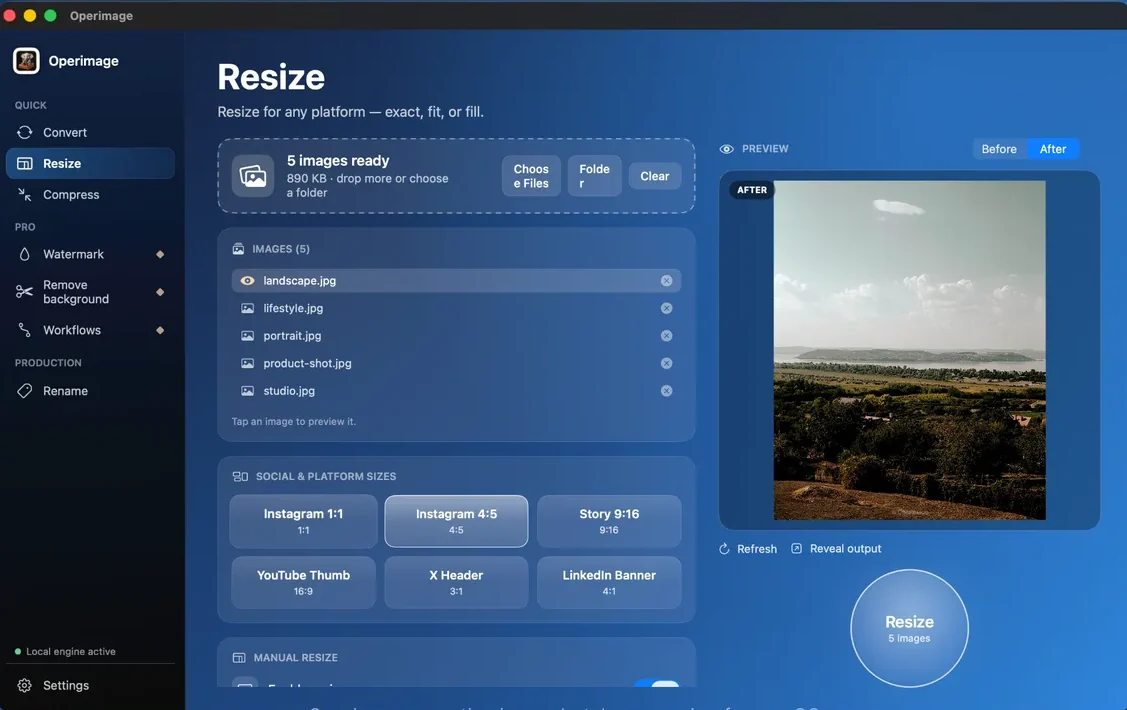
Operimage, a free Mac app, has a LinkedIn Banner 4:1 preset in its Resize tool for profile backgrounds. Open Resize, drop in the images or choose a folder, and pick the preset under Social & platform sizes; for post images use Instagram 1:1 or Instagram 4:5, which produce the same 1080-pixel square and portrait sizes LinkedIn displays well. For 1200 × 627 link images or a 4200 × 700 Page cover, choose Manual resize and type the size. Set Fill so every output is exactly the target shape, check the crops in the Before/After preview, and click Resize.
Reveal output opens the resized copies in Finder; your originals are never overwritten. For more on Fit versus Fill and other sizes, see the Mac guide to resizing images in bulk.
A repeatable workflow for LinkedIn content
Teams that post on LinkedIn every week can turn the routine into a saved Workflow in Operimage: resize to 1080 × 1350, compress to high-quality JPEG, then rename by date and topic. One drop of the week's images produces upload-ready files. The same originals can go to other professional channels; the X image size guide covers headers and multi-image posts, and the Facebook image size guide covers Pages and feed posts.
Banners deserve their own small routine. Design the profile background and the Page cover once, at full size, and keep the layered source file. When a campaign or a job title changes, update the source, export it at exactly 1584 × 396 or 4200 × 700, and check it on a phone before announcing anything, since the mobile layout crops and overlaps differently from desktop. Keeping every employee's banner on the same template is an easy way to make a team look consistent on LinkedIn.
- 1Weekly imagesEvent photos, charts, slides
- 2Resize with Fill1080 × 1350, 4:5
- 3CompressJPEG, high quality
- 4Rename2026-10-14-hiring-post-01.jpg
Why is my LinkedIn image blurry or cropped?
LinkedIn image problems usually trace back to shape, size or file weight.
- Banner text cut off: the image was not 4:1. Resize to exactly 1584 × 396 and keep text in the center and right.
- Text hidden behind the profile photo: move it out of the lower-left of the background.
- Page cover rejected: the file is over 3 MB. Export JPEG or compress to a target size.
- Post image cropped in the feed: it was taller than 4:5. Resize to 1080 × 1350.
- Blurry banner: the source was smaller than the slot and got enlarged. Start from a larger original.
- Colors look different after upload: export in sRGB rather than Display P3 or CMYK.
Step by step
Open Resize and load your images
In Operimage, choose Resize in the sidebar and drop in your post images or banner design, or click Folder to load a whole set.
Choose the LinkedIn preset or a manual size
Pick LinkedIn Banner 4:1 for a 1584 × 396 profile background, Instagram 1:1 for square posts, Instagram 4:5 for 1080 × 1350 posts, or Manual resize for 1200 × 627 or 4200 × 700.
Set Fill and check the crops
Fill makes every image exactly the target size. Click through the Before/After preview to make sure faces and text stay in frame.
Resize and compress if needed
Click Resize, then use Compress with a target file size if a file must stay under 3 MB for a Page or 5 MB for an ad.
Reveal output and upload
Use Reveal output to open the finished images in Finder, then upload them on LinkedIn. Originals stay untouched.
FAQ
What size is a LinkedIn banner in 2026?
The personal profile background is 1584×396 pixels at 4:1, JPG or PNG under 8 MB. A company Page cover is 4200×700 pixels, PNG or JPEG up to 3 MB.
What is the best image size for a LinkedIn post?
1080×1350 (4:5) takes the most space on mobile, 1080×1080 (1:1) looks the same everywhere, and 1200×627 (1.91:1) suits desktop and link previews.
What size should a LinkedIn profile picture be?
At least 400×400 pixels and under 8 MB. A larger square such as 800×800 stays sharper on high-resolution screens.
What is the LinkedIn company logo size?
LinkedIn recommends 400×400 pixels, with a minimum of 268×268. The file must be PNG or JPEG and no larger than 3 MB.
How many images can I add to a LinkedIn post?
Up to 20 photos in one multi-photo post. The first image sets the layout, and images render at a maximum ratio of 4:5.
What size is a LinkedIn article cover image?
1920×1080 pixels is LinkedIn's recommended size for article cover images.
Why is my LinkedIn banner cut off?
The image was not 4:1, or important content sits behind the profile photo. Resize it to 1584×396 and keep text away from the lower-left area.