X (Twitter) image sizes at a glance
The four sizes you need for X are a 1500 × 500 px header, a 400 × 400 px profile photo, a 1600 × 900 px landscape or 1080 × 1350 px portrait post image, and a 2:1 link card image. The header and profile sizes come straight from X's help center. Post-image sizes are not published by X for organic posts, so the values below are the widely used shapes that display with little or no cropping in the timeline.
This guide is one of the platform pages in the complete social media image size guide, which lists every network side by side. If you publish the same visual to several platforms, start there; if X is your main channel, the table below is the short version.
X image sizes (October 2026)
| Placement | Recommended pixels | Ratio | Notes |
|---|---|---|---|
| Header (banner) | 1500 × 500 | 3:1 | About 60 px top and bottom may be cropped |
| Profile photo | 400 × 400 | 1:1 | Shown as a circle; JPEG, PNG or GIF under 2 MB |
| Post image, landscape | 1600 × 900 | 16:9 | Widely used; shows uncropped in the timeline |
| Post image, portrait | 1080 × 1350 | 4:5 | Tallest shape that usually avoids a crop |
| Post image, square | 1080 × 1080 | 1:1 | Safe for multi-image grids |
| Link card (summary_large_image) | 1200 × 600 or larger | 2:1 | Min 300 × 157, max 4096 × 4096, under 5 MB |
How the X sizes compare to scale
Drawn to scale, the difference between placements is obvious: the header is a long strip, the profile photo is small and round, and post images range from wide to tall. That is why a single export rarely works everywhere. A photo cropped to 16:9 for a post will lose most of its height in a 3:1 header, and a square avatar crop needs the subject centered with room around it for the circle mask.
- Header1500 × 500 · 3:1
- Post, landscape1600 × 900 · 16:9
- Post, portrait1080 × 1350 · 4:5
- Profile photo400 × 400 · 1:1, circle
What size is the X header image?
X recommends 1500 × 500 px for the header, also called the banner. That is a 3:1 ratio. X's help center notes that even at the recommended size, roughly 60 px at the top and bottom can be cropped depending on the screen and browser, so the usable band is closer to 1500 × 380 px in the middle of the image.
On the profile page, the round profile photo overlaps the lower-left part of the header, and on phones the header is shown smaller than on desktop. Keep logos, names and text inside the central area and away from the bottom-left corner. Treat the outer edges as background that can disappear.
Animated GIFs are not supported for headers. Use a JPEG for photographic banners and a PNG when the banner is mostly flat color and text, because PNG keeps lettering crisp without JPEG halos. If your banner was designed at 3000 × 1000 px for sharpness, scale it down to 1500 × 500 px before upload; X re-encodes uploads anyway, and a correctly sized file gives you control over how it looks.
- Safe zone: keep text within the middle 380 px of height.
- Avatar corner: leave the lower-left area free of important detail.
- Format: JPEG for photos, PNG for graphics and text, no animation.
What size should an X profile picture be?
X recommends a 400 × 400 px profile photo in JPEG, PNG or GIF, under 2 MB. The photo is displayed as a circle, so the corners of the square are cut away. Center the face or logo and leave a margin of about 10% on every side so nothing touches the edge of the circle.
Upload a square image. If you upload a rectangle, X asks you to crop, and doing that crop yourself first means every account in a team or brand uses the same framing. For logos, export PNG with a solid background color rather than transparency, because a transparent logo can sit on a light or dark background depending on the viewer's theme.
If an upload fails, the usual causes are a file over 2 MB, an unsupported format such as HEIC from an iPhone, or an animated GIF. Convert iPhone photos first with a HEIC to JPG conversion on Mac, then resize to 400 × 400.
What size should images in X posts be?
X does not publish one recommended pixel size for images in regular posts. The timeline shows single images in a range of shapes, and the widely used safe choices are 1600 × 900 px for landscape (16:9), 1080 × 1350 px for portrait (4:5) and 1080 × 1080 px for square. Images taller than about 4:5 are usually center-cropped in the timeline preview until someone taps them, so the top and bottom of a tall infographic may be hidden at first glance.
A post can carry up to four photos. With two to four images, X tiles them into a grid and crops each tile, so keep subjects near the center of every image in a multi-image post. If the full composition matters, combine the panels into one 16:9 canvas instead.
For file weight, keep photos under 5 MB, the long-standing limit for photo uploads on the web and through X's developer API, and GIFs under 15 MB. X's Media Studio documents a higher image limit, but staying under 5 MB works everywhere. JPEG and PNG are the safe formats for photos; X's developer documentation also lists WebP and GIF for image uploads. iPhone HEIC files should be converted to JPEG first so every app and browser handles them the same way.
16:9 landscape
1600 × 900
- Shows in full in the timeline
- Best for screenshots, charts and slides
- Matches link card and video thumbnails closely
4:5 portrait
1080 × 1350
- Takes more vertical space in the feed
- Best for people, products and phone photos
- Same crop you may already use for Instagram
Verdict: Default to 16:9 for information and 4:5 for photos of people or products.
X ad image specs in brief
Promoted image posts follow the ads help center rather than the profile rules. As of October 2026, X recommends PNG or JPEG for image ads, does not accept BMP or TIFF, and caps image files at 5 MB. X has expanded the aspect ratios it accepts for ads, including 1:1, 4:5, 16:9, 1.91:1 and 9:16, so most assets made for other placements can be reused. Check the current X Ads creative specs before building a campaign, because ad requirements change more often than profile sizes.
Can you resize images for X with built-in Mac tools?
For one or two images, macOS is enough. Preview can crop to a ratio with the selection tool, then Tools › Adjust Size sets the exact pixels, and File › Export saves a JPEG with a quality slider. Preview can also adjust size on several selected images at once, but it scales them without cropping, so mixed shapes come out at mixed ratios.
In Terminal, sips can resize in bulk: sips -z 900 1600 *.jpg forces every file to 1600 × 900, which stretches anything that was not 16:9 already. sips -Z 1600 scales the longest side without cropping. Run sips on copies or with --out, because it overwrites files in place by default.
The gap in both tools is cropping to a fixed ratio across a folder of mixed photos and checking the result before export. That is the step a batch app handles.
How to resize a whole folder for X on Mac
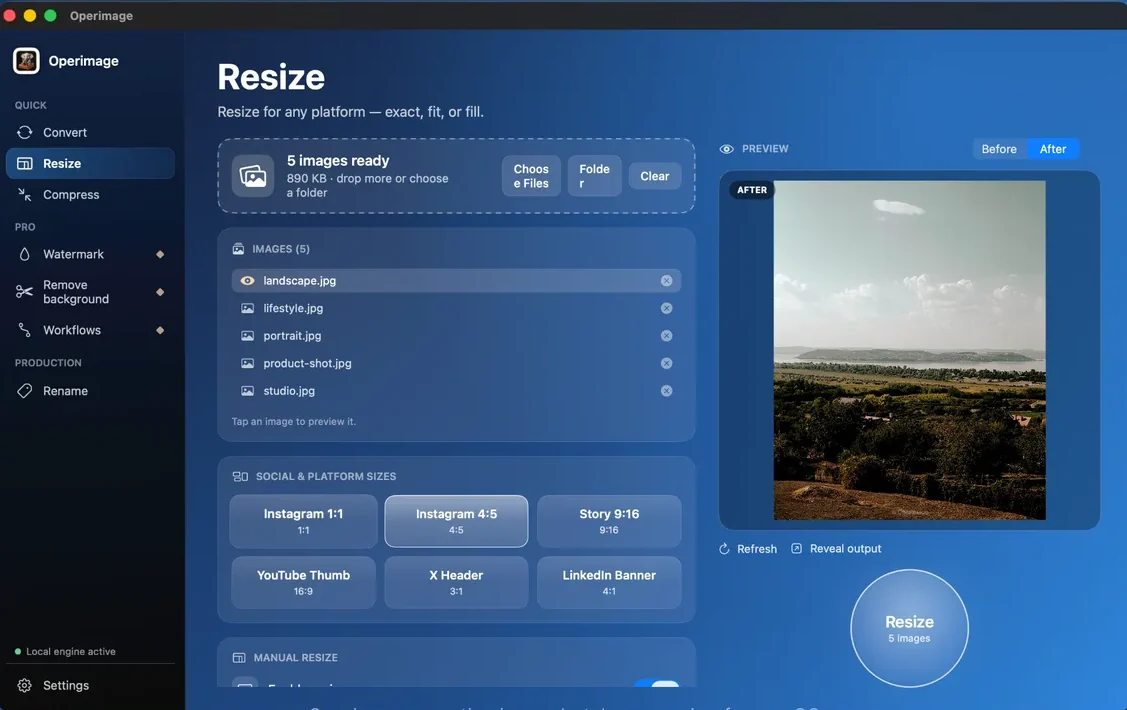
Operimage, a free Mac app, has an X Header 3:1 preset in Resize under Social & platform sizes, and Manual resize for exact post sizes such as 1600 × 900 or 1080 × 1350 with fit or fill. All processing happens on your Mac, nothing is uploaded, and the originals are kept unless you choose to overwrite them. The general guide to resizing whole folders of images on Mac covers the options in more depth.
- Headers: choose X Header 3:1, check the crop in Before/After, export as PNG for text or JPEG for photos.
- Post images: Manual resize, fill, 1600 × 900 for landscape or 1080 × 1350 for portrait.
- File weight: in Compress, JPEG around 82–85%, or Target file size if you want a hard budget well under 5 MB.
- Privacy: turn on metadata stripping so phone photos do not carry GPS location to X.
- Repeat use: save resize → compress as a Workflow and rerun it on the next folder.
Will X reduce the quality of my images?
Yes, X re-encodes uploaded images, and very large or heavy files are compressed harder. The most reliable way to keep quality is to upload at the size X displays, not far above it, in sRGB, at a sensible JPEG quality. A 1600 × 900 px JPEG at around 85% quality usually lands well under 1 MB and survives re-encoding with little visible change.
Wide-gamut Display P3 photos from recent iPhones can look duller after upload because the color profile is converted. Convert to sRGB before export when color matters. Graphics with small text look best as PNG; if a PNG is too heavy, compress images on Mac to a smaller PNG or a high-quality JPEG and compare them side by side.
Before you post to X
- Header is 1500 × 500 px with text in the middle band
- Profile photo is 400 × 400 px, under 2 MB, centered for a circle
- Post images are 16:9 or 4:5 with subjects near the center
- Photos are sRGB JPEG under 5 MB, graphics PNG
- Location metadata removed from phone photos
Other platforms with similar sizes
The same 4:5 and 16:9 exports work elsewhere with small changes. Facebook uses a different cover ratio but similar feed shapes, covered in the Facebook image dimensions guide. LinkedIn's banner is 4:1 rather than 3:1, so check the LinkedIn banner and post sizes before reusing an X header there.
Step by step
Drop your images into Resize
Open Operimage, choose Resize in the sidebar, and drop the files or choose a folder. The bar confirms how many images are ready.
Pick the X Header 3:1 preset or a manual size
Under Social & platform sizes, choose X Header 3:1 for banners. For post images, use Manual resize with 1600 × 900 for landscape or 1080 × 1350 for portrait, set to fill.
Check the crop in Before/After
Click a few images in the list and compare Before and After to make sure faces and text are not cut off, then press Refresh if you change a setting.
Compress under the upload limit
In Compress, set JPEG at about 82–85% quality, or use Target file size to stay well under 5 MB, and turn on metadata stripping.
Save it as a Workflow and export
Save the resize and compress steps as a Workflow so the next batch is one click, run it, and click Reveal output to open the files in Finder.
FAQ
What is the X (Twitter) header size?
X recommends 1500 × 500 pixels, a 3:1 ratio. About 60 pixels at the top and bottom can be cropped on some screens, so keep text in the middle of the image.
What size should my X profile picture be?
Use a 400 × 400 pixel square in JPEG, PNG or GIF under 2 MB. X displays it as a circle, so keep the subject centered with a small margin.
What is the best image size for an X post?
X does not publish one official size for regular posts. 1600 × 900 pixels (16:9) for landscape and 1080 × 1350 pixels (4:5) for portrait are widely used and display with little or no cropping.
How many images can I add to one post on X?
Up to four photos per post. With more than one image, X arranges them in a grid and crops each tile, so keep subjects near the center.
What is the maximum image file size on X?
Keep photos under 5 MB and GIFs under 15 MB for uploads that work on the web, in the apps and through the API. Profile photos must be under 2 MB.
Can I use an animated GIF as my X header or profile picture?
No. X does not support animated GIFs for profile or header images. Use a still JPEG or PNG.
What image size does X use for link previews?
The large summary card uses a 2:1 image between 300 × 157 and 4096 × 4096 pixels, under 5 MB. A 1200 × 600 pixel image is a practical target.