
How to remove EXIF data from photos on a Mac
There are two practical ways to remove EXIF data on a Mac. For a single photo where location is the concern, open it in Preview, choose Tools → Show Inspector, click the information tab, open GPS and click Remove Location Info, then save. For a folder, use a batch tool that strips metadata as it exports copies; Operimage, a free Mac app, does this in its Compress tool with nothing uploaded.
The difference matters because Preview's button only removes location. The camera or phone model, lens, exposure settings, capture date and time, and any embedded copyright or caption fields all remain in the file. That is fine if location is your only worry, but it is not a full metadata clean.
Metadata removal is usually part of preparing files for public use, alongside resizing, converting and compressing. The guide to running several image steps in one batch shows how to combine these steps so each photo is processed once.
- 1iPhone photos350 images with GPS and device data
- 2Compress toolMetadata stripping on, quality 90%
- 3Clean copiesNew folder, no EXIF or GPS
- 4VerifyPreview Inspector on one sample
What does photo metadata reveal?
Photo metadata is text stored inside the image file, separate from the pixels. It is invisible when you look at the photo, but anyone who has the file can read it with Preview, Finder's Get Info window or any of countless free viewers. Three standards cover most of it: EXIF from cameras and phones, IPTC for captions and rights, and XMP, which editing apps use and which can repeat the same information.
Location is the field that matters most for privacy. iPhones and many Android phones and cameras record GPS coordinates when location services are allowed for the camera, and those coordinates are often precise enough to pinpoint a specific house. A photo taken in your garden and shared as the original file can effectively publish your home address.
The other fields are less sensitive but still personal: the exact time a photo was taken shows routines, the device model (and, on some cameras, a body serial number) can link photos to one owner, and author fields may include your full name.
Common metadata in photos and whether to strip it
| Field | Example | Privacy risk | On public copies |
|---|---|---|---|
| GPS location | Latitude, longitude, altitude | High | Strip |
| Date and time | 2026:10:11 08:42:17 | Medium | Usually strip |
| Device make and model | Apple iPhone, camera body | Low to medium | Usually strip |
| Lens and exposure | f/1.8, 1/120 s, ISO 64 | Low | Optional |
| Author and copyright | Name, copyright notice | Depends | Keep if you want credit |
| Color profile (ICC) | Display P3, sRGB | None | Keep for accurate color |
Built-in macOS ways to remove location and metadata
macOS can remove location data without extra software, and for a few photos these options are enough. None of them strips every metadata field from a whole folder in one step, which is where a batch tool comes in.
Photos for Mac has the most convenient option for photos that live in your library: when exporting, leave the location information option unchecked in the export dialog, and the exported copies do not carry GPS data. You can also hide a photo's location in Photos with Image → Location → Hide Location. When sharing from an iPhone, tap Options at the top of the share sheet and turn off Location before sending.
- Preview: Tools → Show Inspector, information tab, GPS, then Remove Location Info. Removes location only, one image at a time.
- Photos export: uncheck location information when exporting. Works on many photos at once, but only for images in your Photos library.
- Finder Convert Image Quick Action: Control-click images, choose Quick Actions → Convert Image, and clear Preserve Metadata to export copies without it.
- Finder Get Info: shows some metadata under More Info, but cannot remove it.
- Terminal: the third-party ExifTool, installed with Homebrew, removes everything with exiftool -all= photo.jpg, which suits people comfortable on the command line.
Preview Remove Location Info
One photo
- Built into every Mac
- Removes GPS only
- Camera, date and author fields stay
- One image at a time
Batch metadata stripping
Whole folders
- Removes EXIF and GPS from every copy
- Handles folders and large batches
- Combines with resize and compression
- Originals keep their metadata
Verdict: Use Preview to clear location from a single photo; use a batch tool when a whole folder is going public.
How to strip metadata from a whole folder with Operimage
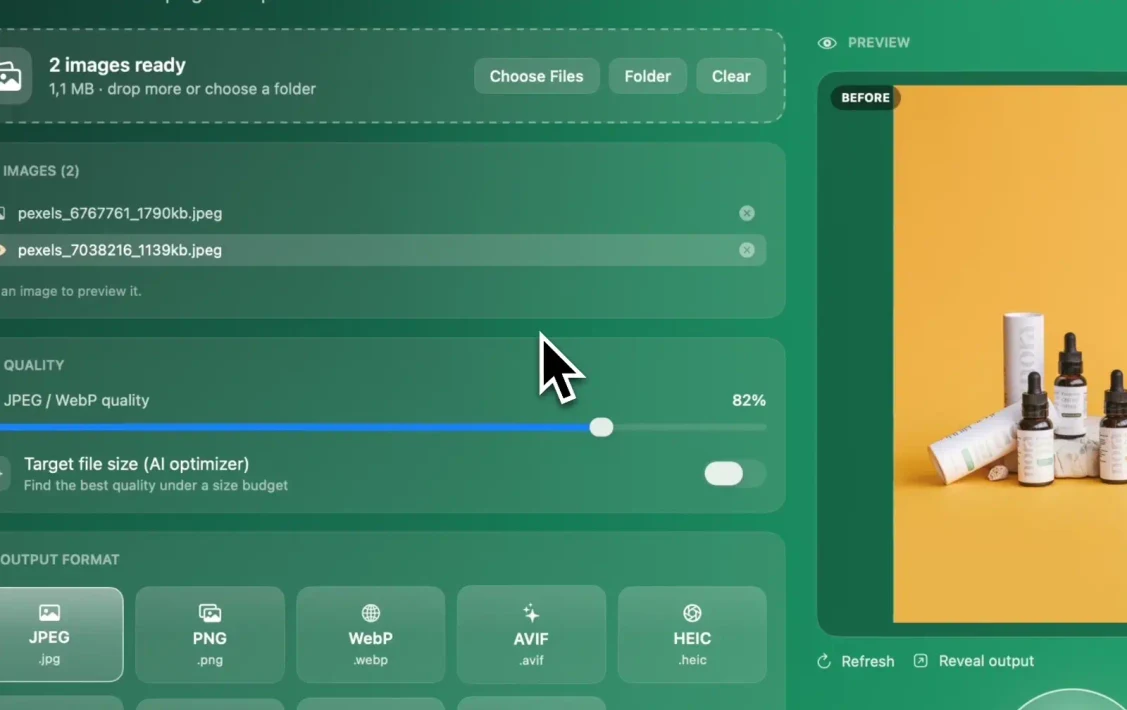
Operimage removes metadata as part of its Compress tool, so a folder of photos can be cleaned, resized and made lighter in one run. Choose Compress in the sidebar, drop in your photos or click Folder, and turn on metadata stripping. Pick the output format; keeping the source format is simplest, and you can choose any of the nine supported formats if you also want to convert, for example when you convert HEIC photos to JPG for sharing.
If the goal is only privacy, set the JPEG or WebP quality high, around 90%, so the re-saved images look identical to the originals. If you also want smaller files, lower it or use the target file size option; the guide on how to shrink photo file sizes on a Mac explains which settings to use. Click Compress, then Reveal output to see the cleaned copies in Finder.
Everything runs on your Mac and nothing is uploaded, which matters for this job in particular: sending photos to a web service to remove their location data means handing the location data to that service first. The comparison with web tools is covered in the guide to an offline alternative to online converters.
Does removing EXIF data reduce image quality?
Removing metadata on its own never changes the pixels, because metadata is stored separately from the image data. A tool that edits only the metadata, such as ExifTool or Preview's location button, leaves the picture exactly as it was.
Many batch tools, including image converters and compressors, remove metadata by writing a new copy of the image. For lossless formats like PNG that makes no visible difference. For JPEG, WebP and HEIC, writing a new file means encoding the image again, and the quality setting decides whether you can see a change. At around 90% quality the difference is typically invisible; at lower settings you trade some quality for smaller files, which is often what you want for web images anyway.
The file-size saving from metadata alone is usually small, often a few kilobytes up to tens of kilobytes when an embedded preview thumbnail is included. Strip metadata for privacy and tidiness, not for speed.
How to check whether a photo still has metadata
Checking takes a few seconds and is the only way to be sure a cleaning step worked. Do it on one or two outputs from every batch, ideally on a photo you know contained GPS data before, so an empty result actually means something.
Preview is the quickest checker on a Mac. Open the cleaned copy, choose Tools → Show Inspector (Command-I) and click the information tab. If location has been removed, the GPS tab is gone; if all metadata has been stripped, the Exif tab is gone or shows only basic technical fields such as pixel dimensions and color space. Compare it with the original to see exactly what changed.
Finder gives a second view: select the file, choose File → Get Info and look under More Info. It lists items such as the device make and model and, for some files, location-related details. For a complete field-by-field listing, Terminal's mdls command prints the metadata Spotlight has indexed for a file, and ExifTool prints everything stored in it.
- Preview Inspector: look for a missing GPS tab and an empty or minimal Exif tab.
- Finder Get Info: More Info should no longer list the device model.
- Before and after: always compare a cleaned copy with its original, not in isolation.
- Spot-check variety: test one iPhone photo, one camera photo and one edited export if the batch mixes sources.
Edge cases: orientation, color profiles, Live Photos and screenshots
A few side effects catch people out when they strip metadata from a batch. All of them are easy to spot if you check a handful of outputs before sharing the full set.
The orientation flag is the most common. Phones often save the image sideways and store a tag saying how to rotate it for display. If a tool removes that tag without rotating the pixels, portrait photos appear sideways. Check at least one portrait photo in every cleaned batch.
- Orientation: verify that portrait photos still display upright after stripping.
- Color profiles: iPhone photos are often in Display P3. The color profile is not personal data; if colors look duller after cleaning, the profile was dropped or the image was not converted to sRGB.
- Live Photos: the still image and the short video are separate files, and the video carries its own metadata, including location.
- Screenshots: Mac and iPhone screenshots contain little camera metadata, but they can still show private information on screen.
- Edited photos: apps such as Lightroom add XMP fields with edit history and keywords; a full strip removes these too.
When to strip metadata, and when to keep it
Large social networks generally remove location data from photos when they publish them, but that is not true of every route a file can take. Email attachments, AirDrop, cloud storage links, messaging apps that send the original file, forums, marketplaces and your own website can all pass the file on with its metadata intact. If you are not sure what a destination does, strip the metadata yourself first.
Keep metadata on the originals in your archive. Capture dates make photos sortable, camera settings help when you are learning or editing, and copyright fields support a claim of authorship. The safest habit is to clean copies at export time and never touch the source files. If public photos also need visible credit, add a mark with batch watermarking for Mac in the same session.
Before sharing a cleaned batch
- Metadata stripped on copies, originals kept intact
- No GPS tab in Preview's Inspector on a sample
- Portrait photos still display upright
- Colors match the originals side by side
- Nothing in the picture itself gives away a location
- Live Photo videos handled separately if you share them
Step by step
Open Compress and load the photos
Choose Compress in the Operimage sidebar, then drop files or click Folder to load everything you want to clean.
Turn on metadata stripping
Enable the metadata option so EXIF and GPS data are removed from every exported copy.
Choose the output format and quality
Keep the same format as the source, or pick another of the nine formats. For JPEG or WebP, set quality high, around 90%, if you only want the metadata gone.
Run the batch and reveal the output
Click Compress, then use Reveal output to open the cleaned copies in Finder. Originals are not overwritten unless you choose to.
Verify one sample
Open a cleaned copy in Preview, choose Tools → Show Inspector and confirm there is no GPS tab and the camera fields are gone.
FAQ
How do I remove location from a photo on a Mac?
Open the photo in Preview, choose Tools → Show Inspector, open the GPS tab in the information panel and click Remove Location Info, then save. For many photos, use a batch tool that strips GPS on export.
How do I see EXIF data on a Mac?
Open the image in Preview and choose Tools → Show Inspector, then click the information tab to see EXIF and GPS fields. Finder's Get Info window also shows some details under More Info.
Can I remove metadata from many photos at once on a Mac?
Yes. Photos for Mac can export copies without location, and a batch tool such as Operimage can strip EXIF and GPS from a whole folder while writing new copies.
Does removing EXIF data reduce image quality?
Removing metadata itself does not touch the pixels. Tools that re-save JPEG or WebP files re-encode them, so use a high quality setting, around 90%, if you want no visible change.
Do Instagram and Facebook remove EXIF data?
Large social networks generally strip location data from published photos. Email, AirDrop, cloud links and many websites can pass the original file on unchanged, so clean files yourself when unsure.
Do iPhone photos contain GPS location?
Yes, when location access is allowed for the Camera app. You can turn off Location in the share sheet's Options when sending a photo, or strip it on your Mac before sharing.
Should I remove metadata from all my photos?
No. Strip it from copies you share publicly and keep it on your originals, where capture dates, camera settings and copyright information remain useful.