What is the best alternative to an online image converter?
The best alternative to an online image converter is converting on your own Mac. A local tool reads the image from your disk, converts it with your processor and writes the result back to a folder you choose. Nothing is uploaded, nothing waits in a queue, and there is no daily limit. For most people, the tools already on macOS cover simple jobs, and a free batch app covers the rest.
For a few images to JPEG, PNG or HEIC, use Finder's Convert Image Quick Action or Preview's export. For WebP or AVIF output, compression to a specific file size, or folders of hundreds of files, Operimage, a free Mac app, does the same job as a converter website, offline. If you are still choosing a target format, the hub on batch image conversion for Mac compares every common format.
Online converter
Upload, wait, download
- Every file sent to a third-party server
- Free tiers often limit file count or size
- Results usually arrive as a ZIP to unpack
- Settings reset on each visit
Local conversion on Mac
No upload
- Files never leave your disk
- No caps beyond disk space
- Output written straight to a folder
- Settings can be saved and rerun
Verdict: For anything private, large or repeated, local wins. For one public image on a borrowed computer, a reputable website is fine.
Are online image converters safe?
Using an online converter means uploading the file to a server you do not control. Reputable services use encrypted connections and publish policies saying uploads are deleted after a set time, and many are perfectly fine for public images. The risk is not that every site misuses files; it is that you are trusting a policy you cannot verify, and that some lesser-known converter sites are ad-heavy, with misleading download buttons.
The bigger privacy issue is what travels inside the image. Photos from phones and cameras usually carry EXIF metadata: camera model, capture time and often GPS coordinates precise enough to locate a home. Uploading the file sends all of that along. Client work under NDA, unreleased product shots, ID scans, medical images and family photos are the categories where avoiding the upload entirely is the sensible default.
Do not upload these to a converter website
- Client or employer work covered by an NDA or contract
- Unreleased product, packaging or campaign images
- Scans of IDs, passports, contracts or medical documents
- Family and children's photos with GPS data still embedded
- Anything you would not post publicly as-is
Where browser converters fall short on real batches
Online converters are designed around a single upload. That works for one file and starts to hurt as soon as the job is a folder. These are the friction points people most often hit, and the reason many switch to a local tool even when privacy is not a concern.
- Limits: free tiers commonly cap the number of files per job, the size per file or the conversions per day.
- Time: every file is uploaded and downloaded again. On a slow connection, a 2 GB folder of photos can take far longer to transfer than to convert.
- Packaging: results usually come back as a ZIP, often with renamed files and no original subfolders.
- Settings: quality and resize options reset on each visit, so a repeated job is rebuilt by hand every time.
- Review: you typically see the result only after downloading, so mistakes surface after the whole batch is done.
- Metadata: many tools do not say whether EXIF and GPS data are kept or removed.
Is local conversion slower than a website?
Usually not. A converter website still has to receive every byte you send, process it on a shared server and send every byte back. A local tool skips both transfers and uses the Mac's own processor, which on any Apple Silicon or recent Intel Mac converts typical photos quickly. The difference grows with file size: a few small PNGs feel the same either way, while a folder of 48-megapixel iPhone photos or large TIFF scans is far quicker to process where it already lives.
Local conversion also keeps working when the network does not: on a train, on hotel Wi-Fi, or on a corporate network that blocks file-sharing sites.
Local tools already on your Mac
Before installing anything, it is worth knowing what macOS already does offline. In Finder, select images, right-click, and choose Quick Actions → Convert Image to make JPEG, PNG or HEIF copies at a choice of sizes. In Preview, open several images, select all thumbnails in the sidebar and choose File → Export Selected Images to write JPEG, PNG, HEIC, TIFF or PDF. Preview's Tools → Adjust Size resizes a selection. In Terminal, sips converts or resizes an entire folder with one command.
These replace a large share of everyday online conversions, especially HEIC to JPEG; the iPhone photo conversion walkthrough shows each route. What they cannot do is write WebP or AVIF, compress to a target file size, or handle very large folders comfortably with a preview step.
Replacing a converter website with Operimage
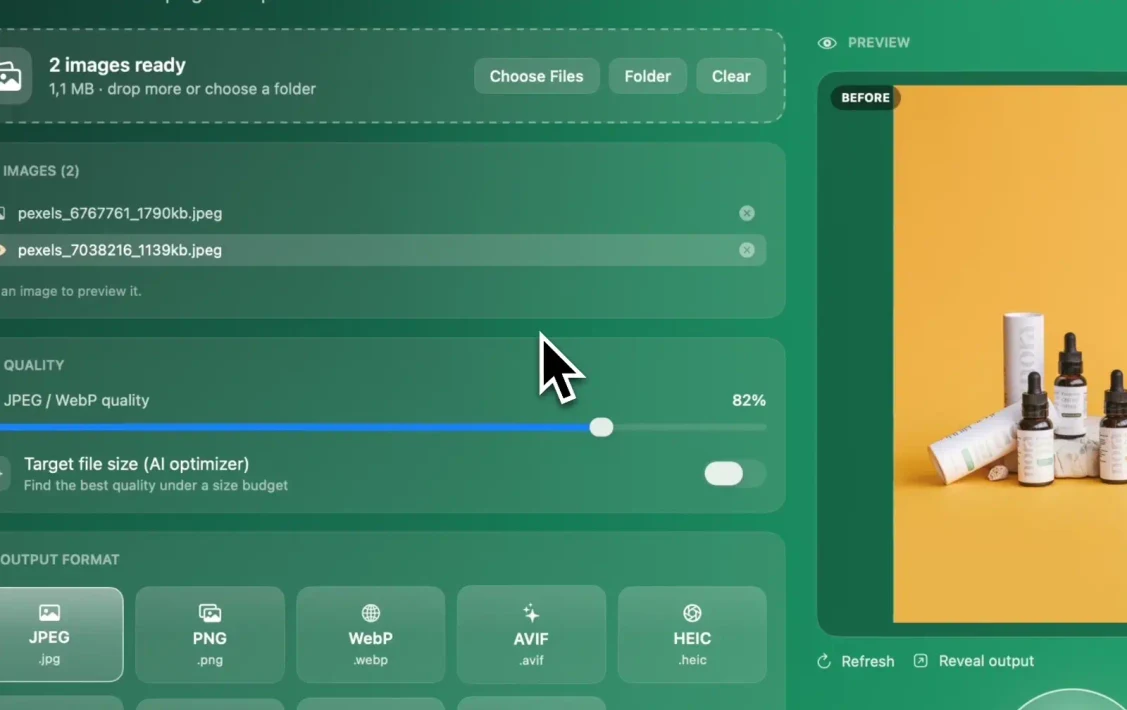
Operimage mirrors the online converter workflow without the upload. Choose Convert in the sidebar, drag in the files or click Folder, pick one of nine output formats (JPEG, PNG, WebP, AVIF, HEIC, GIF, BMP, PDF, TIFF) and set the quality. Before running everything, click a file to compare Before and After, which most websites only allow after you download. Then click Convert and Reveal output to open the results in Finder, with names and subfolders intact.
The status line reads Local engine active because every step, including the on-device AI background removal tool, runs on the Mac. That also means it works on a plane, behind a strict company network, or with a folder of thousands of files. If you regularly need WebP specifically, the WebP conversion hub covers quality settings and compatibility. For a broader comparison with Preview, Permute, Retrobatch and XnConvert, read which offline converter fits your Mac workflow.
- 1Drop folderFiles stay on your Mac
- 2Choose formate.g. WebP at 80%
- 3Before/AfterCheck one file first
- 4Reveal outputConverted copies in Finder
Replacing online image compressors too
Many people use web compressors as often as web converters, usually to get under an upload limit or speed up a website. The local version is the same idea: choose a quality level, or give a file-size budget and let the tool find the highest quality that fits. The guide to reducing image file size on Mac covers quality settings, and compressing to an exact size like 100 KB explains how size-budget optimizers work.
In Operimage's Compress tool you set a JPEG or WebP quality, or turn on Target file size (AI optimizer) to find the best quality under a size budget, pick an output format and optionally strip metadata in the same pass. Because nothing is uploaded, compressing a folder of 500 product photos takes no longer than the processing itself.
Common online converter jobs, done locally
Most visits to converter websites fall into a handful of tasks. Each one has a direct offline equivalent on a Mac, usually faster once the files are larger than a few megabytes.
- HEIC to JPEG: Finder's Convert Image Quick Action for a few photos; Operimage's Convert tool at 82–85% quality for whole camera rolls.
- WebP to JPEG or PNG: Preview opens WebP and exports JPEG or PNG; for folders of downloaded WebP files, batch convert them in one run.
- JPEG or PNG to WebP or AVIF: macOS cannot write these formats, so use Operimage's Convert tool; around 80% quality is a good start for WebP.
- Compress to under 1 MB, 500 KB or 100 KB: use a target file size option instead of guessing quality levels one by one.
- Resize for social media: use fixed presets so every image in a set gets the same frame. The guide to sizing a batch of photos for Instagram lists the current frames and crop-safe margins.
- PNG to PDF for a document: Preview can export images as PDF; Operimage's Convert tool also outputs PDF in batches.
- Remove a background: instead of uploading portraits or products to a cutout website, Operimage's Remove background tool runs its AI model on the Mac and exports transparent PNG or WebP.
Strip metadata before images leave your Mac
Converting locally keeps files off third-party servers, but the images you eventually publish, email or upload to a marketplace still carry whatever metadata they contain. A JPEG converted from an iPhone HEIC can still hold the exact location where it was taken. Make metadata stripping part of the job for anything public.
The steps for removing EXIF and GPS from a folder of photos show how to check what a file contains in Preview's Inspector and how to clean a whole batch. In Operimage, metadata stripping is an option in Compress, so it can run in the same pass as compression.
When an online converter is still a reasonable choice
A browser converter is not always the wrong tool. If you are on a borrowed computer where you cannot install software, need to convert one public image such as a logo already on your website, or need an unusual format that none of your local tools reads, a reputable online service is a practical answer.
The balance shifts with three things: privacy, volume and repetition. Once a file is private, once the job is more than a handful of images, or once you find yourself doing the same conversion every week, local tools are faster overall and remove the trust question entirely.
Step by step
Load the files you would have uploaded
Open Operimage, choose Convert, then drag the images onto the window or click Folder. Nothing is uploaded; the app shows Local engine active.
Pick the output format
Choose JPEG, PNG, WebP, AVIF, HEIC, GIF, BMP, PDF or TIFF, and set the quality slider for lossy formats, around 82% for web use.
Check a sample in Before/After
Click one image in the list and compare Before and After, something most web converters only let you do after downloading.
Convert the whole batch
Click the round Convert button. There is no file-count cap and no ZIP to download and unpack.
Compress or strip metadata if needed
Switch to Compress to set a quality or a target file size, and enable metadata stripping for images you will publish.
Reveal the output
Click Reveal output to open the finished files in Finder, with original names and folders kept.
Online converters vs local Mac tools
| Path | Uploads files | Typical limits | WebP and AVIF output | Best fit |
|---|---|---|---|---|
| Online converter | Yes | Free tiers often cap file count or size | Usually | One public image on someone else's computer |
| Preview / Quick Actions | No | Comfortable up to a few dozen files | No | Small JPEG, PNG or HEIC jobs |
| sips (Terminal) | No | None beyond disk space | No | Scripted bulk conversion |
| Operimage | No | None beyond disk space | Yes | Private, large or repeated batches |
FAQ
Are online image converters safe to use?
Reputable ones are generally fine for public images, but every file is uploaded to a third-party server along with any EXIF and GPS data. For private or client images, converting locally on your Mac avoids that entirely.
How can I convert images on a Mac without uploading them?
Use Finder's Quick Actions → Convert Image, Preview's File → Export, or the sips command for JPEG, PNG and HEIC. For WebP, AVIF and large folders, use an offline app such as Operimage.
Do online image converters keep my files?
Policies differ by service. Many state that uploads are deleted after a few hours, but you are relying on that policy, so read it before uploading anything sensitive.
Is there an offline image converter for Mac that does WebP and AVIF?
Yes. Operimage is a free Mac app that converts to WebP, AVIF and seven other formats entirely on your Mac.
Can I compress images to a specific size without a website?
Yes. Operimage's Compress tool has a target file size option that finds the highest quality under your size budget, offline.
Do online converters remove EXIF data?
Some do and some do not, and many do not say. If location privacy matters, strip metadata yourself before uploading or sharing.