What is the best image converter for Mac?
The best image converter for Mac depends on how many files you convert, which formats you need, and how often the job repeats. For a handful of images to JPEG, PNG or HEIC, Preview is already installed, runs offline and is genuinely good enough. For whole folders, WebP or AVIF output and a quick Before/After check, Operimage, a free Mac app, is the most direct choice. For highly customized pipelines with conditional rules or scripting, Retrobatch is the power tool, and XnConvert stands out for sheer format coverage across Mac, Windows and Linux.
All of these tools process images on your Mac, so none of them uploads your files. That puts them in a different category from browser converters. If you are still deciding which format to target, the hub on batch converting image formats explains when JPEG, PNG, WebP, AVIF, HEIC or TIFF is the right output.
- 9Output formats in Operimage, including WebP and AVIF
- 0Files uploaded by any converter in this comparison
- 20Files in a realistic test set before choosing
How we compared the converters
Format support is the first filter, but it is a weak way to choose. Two apps can both convert HEIC to JPEG while one forces you to rename files by hand, re-check every output and rebuild the setup next week. The questions that matter in daily use are about the whole job, not the single conversion. If you already use Permute, the Permute alternative comparison shows where each app fits.
- Output formats: can it write what you need, especially WebP and AVIF for the web and HEIC for Apple devices?
- Batch depth: can it load a whole folder, keep subfolders, and chain steps such as resize and compress?
- Review: can you see a Before/After or a preview before committing the full batch?
- Safety: does it write new files and leave originals untouched by default?
- Repeatability: can you save the setup and run it again on next week's folder?
- Ease of use: how long does it take a new user to get a correct result?
- Privacy: does everything stay on the Mac, and can it strip EXIF and GPS metadata?
Preview and the built-in macOS tools
Preview deserves credit. It is on every Mac, works offline and converts a selection of images in a minute: open them together, select all thumbnails in the sidebar and choose File → Export Selected Images. It writes JPEG, PNG, HEIC, TIFF, PDF and JPEG 2000. Finder's Convert Image Quick Action is even faster for JPEG, PNG or HEIF copies, and sips in Terminal can script a folder conversion.
The limits show on bigger or repeated jobs. Preview cannot export WebP or AVIF, does not save settings, flattens output into one folder, and has no Before/After view across a batch. sips is powerful but blind: no preview, and a wrong flag applies to every file. For a step-by-step look at these routes, see all the ways to convert a batch of images on a Mac.
Permute
Permute from Charlie Monroe Software is a Mac-native media converter known for its drag-and-drop simplicity. You drop files onto the window, pick a preset and start; it handles video and audio as well as images, which makes it attractive if your work mixes media types, for example converting screen recordings and screenshots in the same session.
As an image converter, Permute is best for straightforward format changes. It is not built around image-specific steps such as target file-size compression, watermark placement, e-commerce naming patterns or background removal. If images are your main workload rather than one of several media types, a dedicated image tool gives you more control. Check Permute's current documentation for its exact image output formats.
Retrobatch
Retrobatch from Flying Meat is a Mac-only batch processor built on a node graph: you connect nodes for reading files, resizing, cropping, adjusting color, adding watermarks, editing metadata, renaming and writing output. Nodes can branch on rules, for example treating portrait and landscape images differently, and advanced users can add scripts. For complex, conditional pipelines it is one of the most capable tools on any platform.
The trade-off is setup time. Building and debugging a node graph takes longer than choosing a format and clicking Convert, and occasional users may find it more than they need. Retrobatch is the right pick when your rules are genuinely complex and you are willing to invest in learning it.
XnConvert
XnConvert from XnSoft is a cross-platform batch converter for macOS, Windows and Linux. Its standout feature is coverage: it reads hundreds of image formats, including many old and specialized ones, and offers a long list of actions such as resize, rotate, crop, color adjustments, watermarks and metadata operations, applied in sequence to a batch.
XnConvert is a strong choice for unusual source formats or for teams that need the same tool on Mac and Windows. Its interface is dense and less Mac-like than native apps, with many options exposed at once, so expect a little time to find the right settings. Output quality is solid, and presets can be saved for repeat jobs.
Operimage
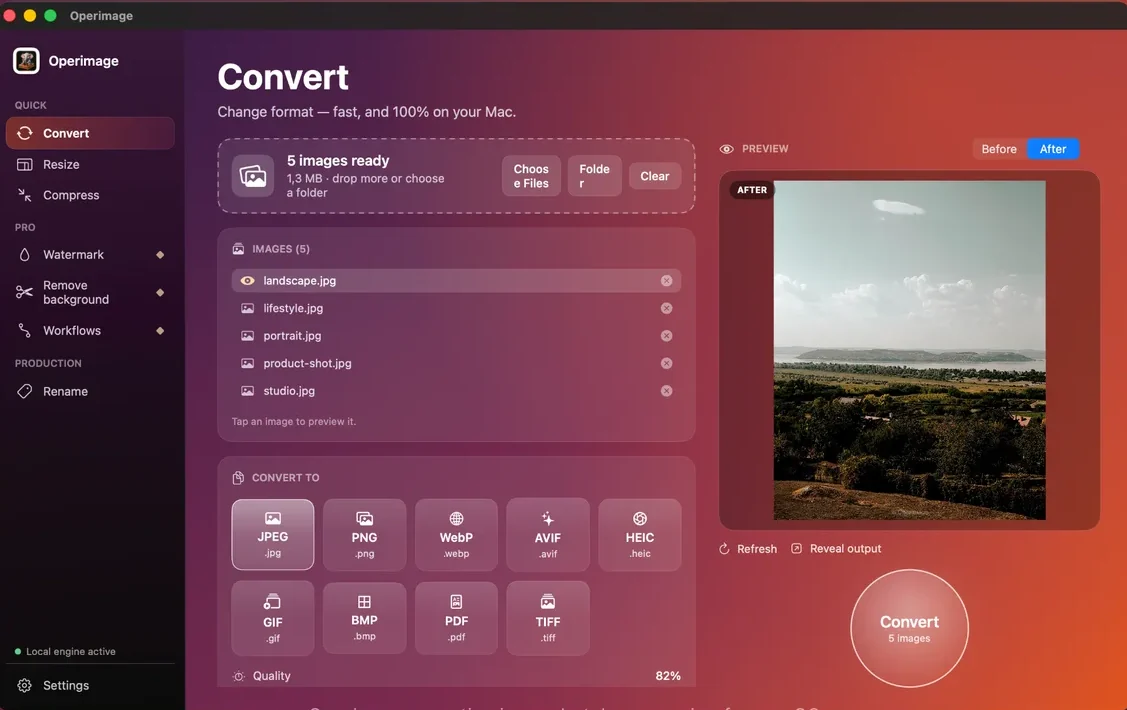
Operimage is a free Mac app on the Mac App Store, native for Apple Silicon and Intel on macOS 12 or later. Instead of a node graph or a long action list, it has one tool per job in the sidebar: Convert, Resize, Compress, Watermark, Remove background and Rename, plus Workflows that save a chain such as resize → compress → rename. Convert writes nine formats: JPEG, PNG, WebP, AVIF, HEIC, GIF, BMP, PDF and TIFF, with a quality slider.
Every tool shares the same loop: drop files or choose a folder, click a file to compare Before and After, then press the round action button and Reveal output in Finder. Originals are left untouched unless you choose otherwise, source folder structure can be kept, and EXIF and GPS data can be stripped in Compress. All processing, including the AI background removal, happens on the Mac. To be fair about its scope: Operimage is not a RAW developer or a pixel editor, it has no command-line interface, and it runs only on Mac.
Which one should you choose?
The deciding question is how much of the job you want the tool to absorb. If conversion is a rare, small task, the built-in tools are enough. If it is a weekly batch with a few predictable steps, a one-window app with saved Workflows removes the most repetition. If your rules are complex enough to need branching logic, a node-based tool is worth the setup.
- A few photos to JPEG for an email: Preview or Finder's Convert Image Quick Action.
- Video, audio and images in the same session: Permute.
- Complex, conditional pipelines or scripted steps: Retrobatch.
- Rare formats or a team split across Mac and Windows: XnConvert.
- Developers who live in Terminal: open-source command-line tools such as ImageMagick or libvips, installed with Homebrew, are scriptable and fast, though there is no visual preview and WebP or AVIF output depends on how they were built.
- iPhone photos and web images at volume, with WebP or AVIF output: Operimage. The HEIC conversion hub covers the iPhone side in detail.
- Web publishing where every kilobyte counts: any tool that writes AVIF and WebP; the AVIF versus WebP comparison helps pick between them.
Configurable pipeline tools
Retrobatch, XnConvert
- Maximum flexibility and rule-based logic
- Broadest format and action coverage
- More setup time per new job
One-window batch app
Operimage
- One tool per task, results in a few clicks
- Before/After check on any file before the run
- Saved Workflows for repeat jobs
Verdict: Choose by the complexity of your rules: complex and conditional favors pipeline tools; frequent and predictable favors a one-window app.
Why offline conversion matters
An offline converter never sends your images to a server. That matters for client work under NDA, unreleased products, personal photos and anything with GPS coordinates embedded. It also removes upload and download time, file-count caps and size limits that free web tools often impose. If you have been using browser tools, the guide to moving from web converters to a local workflow covers when a website is still fine.
Offline does not automatically mean clean, though. A converted copy can still carry the camera model, capture time and location of the original. Before publishing, follow the steps for scrubbing EXIF and location data on Mac, and keep originals in a separate folder from exports.
How to test a converter before you commit
Testing with one perfect image proves very little. Build a 20-file test folder from your real work and run it through each candidate. The results show differences that a feature list never will: how orientation is handled, whether transparency survives, how names and folders come out, and how many clicks the second run takes.
If image conversion is part of a bigger routine with resizing, compression, watermarks and renaming, read the overview of batch image tools on Mac to see which steps you will want the same app to cover.
Your 20-file test set
- A portrait iPhone HEIC to check orientation
- A transparent PNG logo to check that transparency survives
- A large TIFF or high-resolution photo to check speed and memory
- A WebP saved from a website to check input support
- Files in two subfolders to check structure and naming
- A second run of the same job to measure repeatability
Step by step
Load a realistic test set
In Operimage, choose Convert and drop 20 representative files or click Folder: include a portrait HEIC, a transparent PNG, a large TIFF and a downloaded WebP.
Choose the output format and quality
Pick the target format from the nine options and set the quality slider, around 82% for JPEG and WebP.
Inspect Before/After on the hard cases
Click the portrait, the transparent PNG and the most detailed photo in the list and compare Before and After for orientation, transparency and artifacts.
Convert and reveal the output
Click Convert, then Reveal output to check names, file sizes and folder structure in Finder.
Save the recipe if the job repeats
If you will run the same conversion again, save it as a Workflow so the next folder takes one click.
Offline image converters for Mac at a glance
| Tool | Type | Main strength | Main trade-off | Best for |
|---|---|---|---|---|
| Preview | Built into macOS | Zero setup, fully offline | No WebP/AVIF output, no saved settings | A few files in common formats |
| Permute | Mac media converter | Simple drag-and-drop for video, audio and images | Image tools are narrower than a dedicated image app | People converting mixed media |
| Retrobatch | Mac node-based batch processor | Very flexible pipelines with rules and scripting | Learning curve for building node graphs | Complex, rule-driven pipelines |
| XnConvert | Cross-platform batch converter | Hundreds of formats and many actions | Dense interface that feels less Mac-native | Unusual formats and cross-platform teams |
| Operimage | Mac batch image app | Convert, resize, compress, watermark, rename and cutouts in one window | Mac only; no RAW editing or pixel-level editing | Repeat batches with Before/After checks |
FAQ
What is the best free image converter for Mac?
Preview is the best built-in option for a few files in common formats. For whole folders and WebP or AVIF output, Operimage is a free Mac app that converts offline with Before/After preview.
Is Preview a good image converter?
Yes, for small jobs. Preview converts selections to JPEG, PNG, HEIC, TIFF and PDF offline, but it cannot export WebP or AVIF and does not save settings for repeat batches.
Can I convert images on Mac without uploading them?
Yes. Preview, Finder Quick Actions, sips, Permute, Retrobatch, XnConvert and Operimage all process images locally on your Mac.
Which Mac image converter supports WebP and AVIF output?
macOS's built-in tools cannot write WebP or AVIF. Operimage exports both; for other third-party apps, check the developer's current format list.
Is Retrobatch or XnConvert better than Operimage?
They are better for complex rule-based pipelines or rare formats. Operimage is faster to learn for everyday batches that combine converting, resizing, compressing, watermarking and renaming.
What should I look for in an offline image converter?
Check output formats, whole-folder batch support, a preview before export, original-file safety, saved settings and metadata stripping.