Is there a good Permute alternative for images on Mac?
Yes, but first be clear about what Permute is for. Permute, made by Charlie Monroe Software, is an all-in-one media converter: you drop video, audio, image and PDF files onto one window, pick a preset and convert. If your work mixes screen recordings, podcasts and screenshots, that breadth is exactly why Permute is popular, and there is little reason to replace it.
The question changes when your batches are almost entirely photos. Then the useful features are image-specific: compressing a folder to a file-size budget, adding a logo watermark, renaming for a shop, removing backgrounds and keeping subfolders intact. Operimage, a free Mac app, is built around those jobs and runs entirely offline. If you are still deciding which output format to target, the overview of converting image formats on Mac explains when JPEG, PNG, WebP, AVIF and HEIC each make sense.
Permute
All media in one window
- Video, audio, images and PDFs in one queue
- Drag-and-drop presets
- Resize, crop, rotate and flip images in bulk
- Permute 4 needs macOS 26 on Apple Silicon
Operimage
Images only, more image tools
- Convert to 9 image formats, including WebP and AVIF
- Compress to a target file size
- Batch watermark, rename and background removal
- macOS 12 or later, Apple Silicon and Intel
Verdict: Mixed media every day: keep Permute. Mostly photo batches with compression, branding or naming steps: an image-first app saves time.
What Permute does well
Permute's strength is a short path from file to result. You drop files, Permute recognizes the media type, and you choose a preset. The same window converts a video for a phone, extracts audio from a clip and turns a folder of images into another format, which is hard to beat if you handle all three.
- Mixed media: Charlie Monroe Software describes Permute as converting video, audio, images, PDFs and more.
- Image formats: the Permute 4 Mac App Store listing names HEIC, JPEG, PNG, WebP, AVIF and RAW camera formats such as ARW, CR2, CR3 and NEF among supported image types.
- Basic image edits: images and video can be resized, cropped, rotated or flipped, individually or in bulk.
- Text from images: Permute added image-to-text conversion (OCR) in version 3.2.
- Presets: conversions are driven by presets you can customize and reuse.
- Two channels: the app is sold directly by the developer and on the Mac App Store; the developer notes the App Store edition lacks some features due to sandbox restrictions.
Permute vs Operimage for image batches
The table below compares the jobs people most often run on folders of photos. Values for Permute come from Charlie Monroe Software's site and the Mac App Store listing as of October 2026; where we could not confirm a feature, it says Check current version rather than guessing. Permute changes between major versions, so confirm details for the version you own.
Permute vs Operimage for image jobs (as of October 2026)
| Job | Permute | Operimage |
|---|---|---|
| Convert image formats | Yes | Yes, 9 formats incl. WebP and AVIF |
| Video and audio conversion | Yes | No |
| Resize in bulk | Yes | Yes, social presets plus manual sizes |
| Compress to a target file size | Check current version | Yes (AI optimizer) |
| Batch watermark (text or logo) | Check current version | Yes |
| Rename patterns for SEO or shops | Check current version | Yes (Shopify, Amazon, WooCommerce packs) |
| Background removal | Check current version | Yes, on-device |
| Keeps folder structure | Check current version | Yes |
| Works offline | Yes | Yes |
| Mac requirements | Permute 4: macOS 26, Apple Silicon | macOS 12+, Apple Silicon and Intel |
| Where to get it | Developer site, Mac App Store | Mac App Store (free) |
Where an image-first app fits better
A media converter treats an image as one more file type. An image-first app is organized around the decisions photo batches actually require, so each step has its own controls and preview. These are the situations where Permute users most often reach for something else.
Upload limits are the clearest example. Marketplaces, CMSs and email systems cap file size, and guessing a quality level per folder wastes runs. Operimage's Compress tool has a Target file size (AI optimizer) that searches for the highest quality under the budget you set; the guide to hitting an exact size such as 100 KB explains how size-budget compression works and what budgets are realistic.
- Branding: Operimage's Watermark tool places a text or logo watermark across the whole batch with placement, opacity, size and padding controls. The walkthrough on adding a logo to hundreds of photos covers sizing and placement that survive cropping.
- Naming: the Rename tool offers Legacy, Canonical, SEO and Hybrid modes plus Shopify, Amazon and WooCommerce packs, with a live name preview before anything is written.
- Cutouts: Remove background runs an on-device AI model with Smart, Fast, Balanced and Best modes and exports transparent PNG or WebP.
- Folders: whole directory trees can be processed with the source folder structure kept, so a client gallery comes back organized the same way.
- Older Macs: Operimage supports macOS 12 or later on Intel as well as Apple Silicon, which matters if Permute 4's macOS 26 requirement rules out a machine.
How to redo your Permute workflow in Operimage
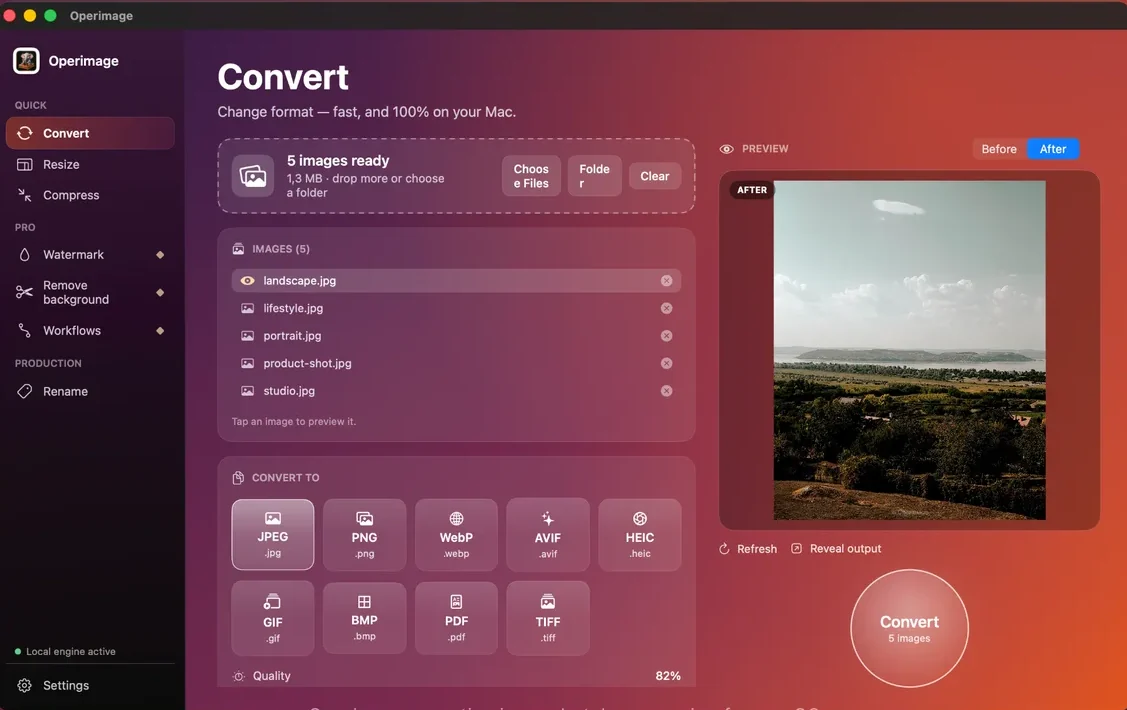
Most Permute image presets boil down to three settings: an output format, a quality level and sometimes a size. Write those down from your preset, then rebuild them once in Operimage. For a typical iPhone camera roll that you used to drop into Permute as HEIC and get back as JPEG, choose Convert, set JPEG, and start at 82% quality; the iPhone photo to JPEG walkthrough explains why that range keeps detail without bloating files.
If your Permute preset also resized, switch to Resize and pick a social preset (Instagram 1:1, Instagram 4:5, Story 9:16, YouTube Thumb 16:9, X Header 3:1, LinkedIn Banner 4:1) or enter exact width and height in Manual resize. Then save the chain as a Workflow, for example resize → convert → compress, so the next folder runs with one click instead of being rebuilt.
Switching in 10 minutes
You do not need to migrate everything at once. Move the image presets you run most often, test them on a small folder, and leave video and audio presets in Permute where they belong.
Switching in 10 minutes
- List your three most-used Permute image presets: format, quality, size
- Install Operimage from the Mac App Store and open Convert
- Rebuild the first preset and test it on 10–20 mixed photos
- Compare Before and After on a portrait, a landscape and a detailed shot
- Add compress, watermark or rename steps you used to do elsewhere
- Save the chain as a Workflow and name it after the job
- Keep Permute for video, audio and PDF conversions
Which output format should replace your Permute default?
Many people moved to a converter to get away from HEIC, and JPEG remains the safe universal choice for sharing and uploading. If the images are going on a website, WebP usually produces noticeably smaller files than JPEG at similar visual quality, and every current major browser displays it; the guide to turning JPGs into WebP suggests a starting quality around 80%.
AVIF can be smaller still but encodes more slowly and is less widely accepted by upload forms, so use it where you control the website. Keep PNG for screenshots, graphics with text and anything that needs transparency, and TIFF or PDF for print and documents. Operimage writes all of these from the same Convert tool, so switching format is a dropdown, not a new preset.
What to check after switching: metadata, color and names
Whenever you change converters, compare a few outputs from the old and new tool before trusting a large batch. Three things differ between apps more often than image quality itself, and each is easy to check in Finder or Preview.
Run this check once with a folder that represents your real work, such as a mix of iPhone photos, screenshots and edited exports. If the results match what Permute produced, or improve on it, move the rest of your image presets over.
- Metadata: photos from phones carry EXIF data, often including GPS location. Open a result in Preview and use Tools → Show Inspector to see what was kept. Operimage can strip EXIF and GPS in the Compress tool for images you publish.
- Color: iPhone photos are usually Display P3. Images headed for the web look most consistent in sRGB, so compare colors side by side on a converted product shot or skin tone.
- File names: check whether names, extensions and subfolders came out the way your next step expects. Operimage keeps original names unless you use the Rename tool, and can keep the source folder structure.
- Overwriting: Operimage writes new files and does not overwrite originals unless you choose to, so you can compare old and new outputs safely.
- 1Sample folder20 mixed photos and screenshots
- 2Old vs newSame format and quality in both apps
- 3InspectMetadata, color, names, file size
- 4Save WorkflowRerun on every new folder
When you should keep Permute
Stay with Permute if images are a small part of what you convert. Its value is that one tool handles a screen recording, an audio file and a batch of screenshots with the same gesture, and an image-only app cannot replace the video and audio half.
Permute also makes sense if your image needs are simple format changes with basic resizing and you are already on macOS 26 with an Apple Silicon Mac. In that case an extra app adds little. The point of switching is the image-specific steps: if you never compress to a size budget, watermark, rename or cut out backgrounds, you may not need them.
Using Permute and Operimage together
The most common setup among people who try both is a split by media type. Video and audio go to Permute. Photo batches go to Operimage, where a saved Workflow handles convert, resize, compress, watermark and rename in sequence. Both run locally, so neither uploads files, and both accept files dragged from Finder.
If you want a broader view before settling, the comparison of offline converters for Mac looks at Preview, Permute, Retrobatch, XnConvert and Operimage side by side. Users who need conditional, rule-based pipelines rather than presets may prefer node graphs; the guide on replacing Retrobatch for everyday batches covers that trade-off.
Step by step
Open the matching tool
Open Operimage and choose Convert in the sidebar for a format change, or Resize, Compress or Watermark for the other parts of your old Permute preset.
Drop the files or a folder
Drag images onto the window as you would in Permute, or click Folder to load a whole directory, subfolders included.
Recreate the preset settings
Pick the output format and set the quality slider, for example JPEG at 82%, or choose a resize preset or exact pixel dimensions.
Check one image
Click a file in the image list and compare Before and After; press Refresh after changing a setting.
Run the batch
Click the round action button, such as Convert 240 images, then Reveal output to open the results in Finder.
Save it as a Workflow
If the job repeats, save the steps as a Workflow (for example resize → compress → rename) so the next batch is one click.
FAQ
What is a good alternative to Permute for images on Mac?
For image-only batches, Operimage is a free Mac app that converts to nine formats and adds target-size compression, watermarks, renaming and background removal. Retrobatch and XnConvert are alternatives for rule-based or highly configurable pipelines.
Does Permute convert images?
Yes. Permute converts images as well as video, audio and PDFs, and it can resize, crop, rotate and flip images in bulk.
What macOS version does Permute 4 need?
Charlie Monroe Software lists macOS 26 and an Apple Silicon Mac as requirements for Permute 4. Permute 3 remains the version for older systems.
Can Operimage convert video like Permute?
No. Operimage works with images only, so keep Permute or another media converter for video and audio.
Is there a Permute alternative that works on Intel Macs?
Yes. Operimage runs on macOS 12 or later on both Intel and Apple Silicon Macs, and processes images entirely offline.
Do Permute and Operimage upload my files?
No. Both convert files locally on your Mac, so images are not sent to a server.