Is there a simpler alternative to Retrobatch?
Retrobatch, made by Flying Meat (the developer of the Acorn image editor), is one of the most capable batch image tools on the Mac. You build a workflow by connecting nodes on a canvas: read a folder, filter images by rules, resize, watermark, edit metadata and write the results. Flying Meat's own pitch is that most image processors are linear, while Retrobatch can branch to different actions at any point. If you rely on that, keep it.
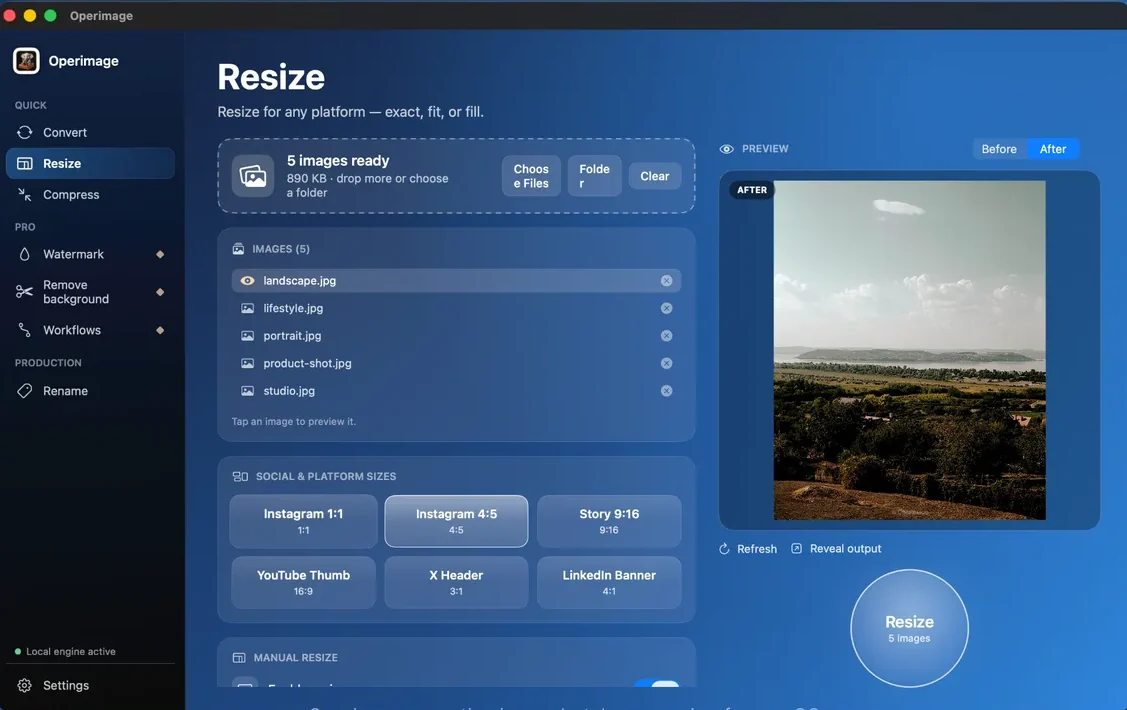
Many people, though, open Retrobatch for linear jobs: turn a folder of HEIC photos into JPEGs at 2048 pixels, compress them and add a logo. For those, wiring nodes is more setup than the job needs. Operimage, a free Mac app, runs the same steps through dedicated tools with a Before/After preview, and saves the chain as a reusable Workflow. For the format side of those decisions, the guide to choosing and batch converting image formats is the place to start.
Retrobatch
Build a graph
- Nodes connected on a canvas, with branches
- Rules filter or sort by size, format, orientation, color profile
- Metadata editing for EXIF, IPTC, PNG and TIFF
- Scripting nodes for custom behavior
Operimage
Pick a tool, save a Workflow
- One sidebar tool per job, each with Before/After
- Compress to a target file size
- On-device background removal
- Saved Workflows chain steps without wiring
Verdict: Conditional, scripted or metadata-heavy pipelines: Retrobatch. The same linear recipe every week: Operimage is quicker to set up and hand to someone else.
What Retrobatch does better
It is worth being specific about Retrobatch's strengths, because they are real and Operimage does not try to match them. Every item below comes from Flying Meat's site, documentation or release notes.
- Branching workflows: one source folder can split into several paths, for example writing a full-size TIFF and a web JPEG from the same read.
- Rules: filter or sort images by attributes such as color profile, file format, size and orientation, and treat portrait and landscape images differently.
- Metadata editing: strip GPS, add copyright and author, and set specific EXIF, IPTC, PNG and TIFF fields.
- Watermarks: separate Image Watermark, Text Watermark and Overlay nodes, with text tokens such as capture date, copyright and author.
- Output formats: the Write Images node writes GIF, HEIC, JPEG, JPEG 2000, JPEG XL, PDF, PNG, PSD, TIFF, TGA and WebP; AVIF writing arrived in version 2.4.1 for macOS 26 or later.
- Machine learning: Retrobatch 2 added ML Super Resolution, a 4× upscaler, and supports classification models for sorting.
- Scripting: JavaScript, AppleScript and shell script nodes let developers add custom steps; check Flying Meat's node list for what your copy includes.
Why people look for a Retrobatch alternative
Most searches for a Retrobatch alternative come from one of three situations. The first is the occasional user: someone who needs to convert and resize a folder a few times a month and finds that, between jobs, they forget how their graph was wired. The second is the team: one person built the workflows, and everyone else is nervous about touching them. The third is a missing step: the job needs something the current graph does not do easily, such as hitting a file-size budget for a marketplace or cutting out product backgrounds.
None of these are flaws in Retrobatch. A node graph is a programming model, and like any programming model it rewards people who use it often. The alternative worth considering depends on which situation you are in. If you are the occasional user or the team, a linear tool with saved recipes is easier to live with. If you are missing a step, check whether a newer Retrobatch node covers it before switching anything.
- 1Read FolderLoad the folder in Operimage
- 2Scale + WatermarkResize and Watermark tools
- 3Write ImagesConvert, Compress and Rename
- 4Saved graphSaved Workflow, rerun in one click
Retrobatch vs Operimage feature table
This table compares the jobs people run most often on photo folders. Retrobatch values are from Flying Meat's documentation and release notes as of October 2026. Where we could not confirm a capability, the cell says Check current version instead of guessing.
Retrobatch vs Operimage (as of October 2026)
| Job | Retrobatch | Operimage |
|---|---|---|
| Convert formats | Yes, incl. WebP, HEIC, JPEG XL; AVIF on macOS 26+ | Yes, 9 formats incl. WebP and AVIF |
| Resize presets | Manual setup in nodes | Yes, 6 social presets plus manual sizes |
| Compress to target file size | Check current version | Yes (AI optimizer) |
| Watermark | Yes (image, text, overlay nodes) | Yes (text or logo) |
| Rename | Yes (Write node name field, rename nodes) | Yes, incl. SEO and shop packs |
| Background removal | Check current version | Yes, on-device |
| Conditional rules and branching | Yes | Not built in |
| Detailed metadata editing | Yes | Strip EXIF/GPS only |
| Upscaling | Yes (ML Super Resolution) | Not built in |
| Keeps folder structure | Yes | Yes |
| Works offline | Yes | Yes |
| Where to get it | Flying Meat website, Mac App Store | Mac App Store (free) |
When a node graph is more than the job needs
A node graph pays off when the logic is complex. When the logic is a straight line, the graph is overhead: you add a Read node, a Scale node, a Write node, connect them, set the format inside the Write node, and debug the connections when something is off. That is fine for the person who built the graph and harder for a colleague who just needs to run it.
Operimage takes the opposite approach. Each task lives in one sidebar tool with only the settings that task needs: Convert has the output format and quality slider, Resize has presets and exact dimensions, Compress has quality, a target file size and metadata stripping. You check a sample in Before/After, run the batch, and save the steps as a Workflow. A new team member can rerun a Workflow without learning what a node is.
- Product photos for a shop: resize to a square, compress under a size budget, rename for search. The guide to batch renaming images on Mac covers naming patterns and counters.
- Client galleries: convert to JPEG, add a logo watermark, keep the folder structure. See watermarking a whole folder of photos for placement and opacity settings.
- Cutouts: remove backgrounds on-device and export transparent PNG or WebP; the offline background removal guide explains the quality modes and edge options.
How to redo your Retrobatch workflow in Operimage
Start by reading your Retrobatch graph left to right and writing each node down as a step. Read Folder becomes the folder you load in Operimage. Scale or Resize becomes the Resize tool with exact width and height or a preset. The format and quality set in Write Images become Convert. A watermark node becomes the Watermark tool, with text or a logo image. File naming in the Write node becomes the Rename tool, where the live preview shows names such as product/product_shot_004.jpg before anything is written.
If your graph has a Rules node that only routes HEIC files to a JPEG output, you can usually drop it: Operimage's Convert tool converts whatever you load. If the graph strips GPS, enable metadata stripping in Compress. If it branches into two outputs, such as a full-size archive and a web version, save two Workflows and run both on the same folder. Graphs that depend on scripts or detailed metadata fields are the ones to leave in Retrobatch.
Switching in 10 minutes
You do not have to retire Retrobatch to try this. Pick your most frequent linear graph and rebuild it once; keep conditional and scripted graphs where they are.
Switching in 10 minutes
- Pick the Retrobatch graph you run most often that has no branches
- Write its nodes down in order with their settings
- Install Operimage from the Mac App Store and load the same source folder
- Recreate each node as a tool step: Convert, Resize, Compress, Watermark, Rename
- Compare 20 outputs against Retrobatch's for size, sharpness and names
- Save the chain as a Workflow named after the job
- Keep branching, scripted and metadata-editing graphs in Retrobatch
Matching quality and file size between the two apps
Quality numbers are not perfectly comparable across apps, because each uses its own encoder settings. Instead of copying the number from a Retrobatch Write node, compare results. Run the same 20 images through both, then check the file sizes in Finder and zoom into fine detail such as hair, fabric or small text.
For JPEG, a quality around 80–85% is a common starting point for web delivery; for WebP, about 80%. If your Retrobatch graph used a fixed quality to stay under an upload limit, try Operimage's Target file size (AI optimizer) instead: you set the budget, and it searches for the highest quality that fits each image. The explanation of reducing image file size on Mac covers how quality and file size trade off.
Handing batch jobs to a team or client
A practical difference between the two apps shows up when someone else has to run the job. A Retrobatch workflow file is portable, but the person opening it sees a graph and has to understand which node does what before changing anything, such as the output folder or the watermark text.
In Operimage, the person loads a folder, picks the saved Workflow and clicks the action button. Each step's settings are visible in its own tool, the Before/After preview shows the result on any image they click, and originals are not overwritten unless they choose to. For agencies delivering the same export to clients every week, or shops where several people prepare product photos, that predictability matters more than flexibility.
When to keep Retrobatch
Keep Retrobatch for anything that makes decisions. If portrait images need a different crop from landscape ones, if only files with a certain color profile should be converted, or if you edit IPTC fields for a photo agency, Retrobatch's rules and metadata nodes do this directly, and Operimage does not. The same goes for scripted steps and upscaling with ML Super Resolution.
Many studios use both: Retrobatch for the few complex pipelines one person maintains, and a simpler app for the daily convert, resize and compress jobs anyone on the team can run. For an overview that also covers Preview, Permute and XnConvert, see the offline Mac converter comparison.
Step by step
List your Retrobatch nodes in order
Open your Retrobatch workflow and write down each node from Read Folder to Write Images, with its key settings.
Load the same folder
Open Operimage, choose the tool for your first step and click Folder to load the source folder, subfolders included.
Recreate each step
Set Convert for the output format, Resize for dimensions, Compress for quality or a target file size, Watermark for branding and Rename for names.
Compare Before and After
Click a portrait, a landscape and a detailed image in the list and compare Before and After; press Refresh after each change.
Save the chain as a Workflow
Save the steps as a Workflow so the whole recipe reruns on the next folder in one click.
Run and reveal
Click the round action button, then Reveal output to check the files and folder structure in Finder.
FAQ
What is a good alternative to Retrobatch on Mac?
For linear jobs such as convert, resize, compress, watermark and rename, Operimage is a free Mac app that does them offline without building a node graph. XnConvert is another option with a long list of chainable actions.
Who makes Retrobatch?
Retrobatch is made by Flying Meat, the developer of the Acorn image editor for Mac.
Can Operimage do conditional rules like Retrobatch?
No. Operimage runs the same steps on every image in a batch; for rules that treat images differently by size, orientation or color profile, Retrobatch is the better tool.
Does Retrobatch support WebP and AVIF?
Retrobatch's Write Images node writes WebP, and version 2.4.1 added AVIF writing on macOS 26 or later.
Does Retrobatch keep the folder structure?
Yes. When Read Folder includes subfolders, Retrobatch's Write node keeps the subfolder layout by default, and Operimage can keep the source folder structure too.
Are Retrobatch and Operimage both offline?
Yes. Both process images locally on your Mac without uploading them.