
How to batch rename photos on a Mac with Finder
The fastest way to batch rename photos on a Mac is Finder's built-in Rename tool. Select the images, Control-click one of them and choose Rename. A dialog opens with three options: Replace Text swaps one string for another in every name, Add Text puts a prefix or suffix before or after the existing name, and Format replaces the names entirely with a base name plus an index, counter or date. Click Rename and every selected file is renamed at once.
For a typical camera or iPhone dump named IMG_4821.HEIC, IMG_4822.HEIC and so on, choose Format, set it to Name and Counter, type a custom format such as "lisbon-trip", choose whether the number goes after or before the name, and set the starting number. Finder shows an example of the resulting name at the bottom of the dialog. Name and Counter adds a zero-padded number, while Name and Index adds a plain number without padding.
Finder renaming is instant, free and built into every Mac, and for one-off cleanups it is all you need. It becomes limiting when the same pattern has to be repeated across many batches, when names must be combined with resizing or format conversion, or when files need sorting into folders. The guide to batch image tools on Mac covers how renaming fits alongside those other steps.
Finder Rename
Built in
- Replace Text, Add Text or Format
- Counter, index or date numbering
- Instant, no extra software
- Settings are re-entered for every batch
Operimage Rename
Rule-based batches
- Naming modes plus Shopify, Amazon and WooCommerce packs
- Live preview of every new name
- Counters, tokens and sorting into folders
- Can run after resize and compress in a saved Workflow
Other built-in ways to rename images on a Mac
Photos for Mac can rename images as it exports them. Select the photos, choose File → Export, and in the export dialog set File Name to Sequential and enter a prefix. The exported copies are numbered in order while the library keeps its original names. This is the cleanest route when your photos live in the Photos library rather than in folders, and it is often paired with converting HEIC on export; the guide to converting iPhone HEIC photos to JPG covers that side.
Shortcuts and Automator can both rename files in bulk. Automator's Rename Finder Items action and the Rename File action in Shortcuts can be combined with other steps into a reusable workflow. They are flexible, but you build and test the logic yourself, and there is no visual preview of all the resulting names before files change.
Terminal can rename anything with a short shell loop, which suits developers comfortable with mv and quoting rules. It is the least forgiving option: a typo can rename files in ways that are tedious to undo, so test on copies first.
What makes a good image filename?
A good image filename tells a person what the file is without opening it, sorts in the right order, and survives every system it passes through: Finder, cloud storage, ZIP archives, content management systems and marketplace uploaders. Those goals point to the same few rules, regardless of whether the files are holiday photos or a product catalog.
Short, descriptive and lowercase names with hyphens are the safest default for anything that will end up on the web. Google's guidance for image SEO recommends descriptive filenames, and hyphens are the conventional word separator in web addresses. Spaces become %20 in URLs, and characters such as #, ?, & and / have special meanings in URLs and file paths.
- Descriptive: blue-linen-shirt-front.jpg says far more than IMG_4821.jpg.
- Lowercase: avoids duplicates on case-sensitive servers, where Shirt.jpg and shirt.jpg are different files.
- Hyphens, no spaces: blue-linen-shirt, not Blue Linen Shirt.
- Padded counters: 001 to 120 rather than 1 to 120, so order is stable everywhere.
- No special characters: avoid / : # ? & % and accented letters in names that go online.
- Short enough to scan: aim for a few words; long names get truncated in upload dialogs and review tools.
Common naming patterns for photo batches
| Use | Pattern | Example |
|---|---|---|
| Event or trip | place-or-event-counter | lisbon-trip-001.jpg |
| Client delivery | client-shoot-date-counter | acme-headshots-2026-10-11-014.jpg |
| Product catalog | product-variant-view | linen-shirt-blue-front.jpg |
| Web content | descriptive-keywords | sourdough-starter-jar.webp |
| Watermarked copies | original-name-suffix | lisbon-trip-001-wm.jpg |
Why zero-padded counters matter
Finder sorts names the way people read them, so photo-2 appears before photo-10. Many other systems do not. Web servers, some cloud storage listings, command-line tools, ZIP archives and older upload dialogs sort character by character, which puts photo-10, photo-11 and photo-12 before photo-2. A gallery that looked perfect on your Mac can arrive in a scrambled order.
Zero-padding fixes this permanently: photo-001, photo-002 and photo-010 sort the same way in every system. Choose the padding from the largest number you expect, not the current batch. Three digits covers up to 999 images; if a catalog might grow past that, use four. Keeping the same padding across related batches also avoids a set that jumps from 099 to 1000.
Decide too whether numbering restarts per batch or continues across batches. Restarting is simpler for separate shoots; continuing avoids two different files both named product-001 when sets are later merged into one folder.
- 001–999Range covered by 3-digit padding
- 255 bytesMaximum filename length on APFS
- 260 charsDefault Windows full-path limit
How to rename images in bulk with Operimage
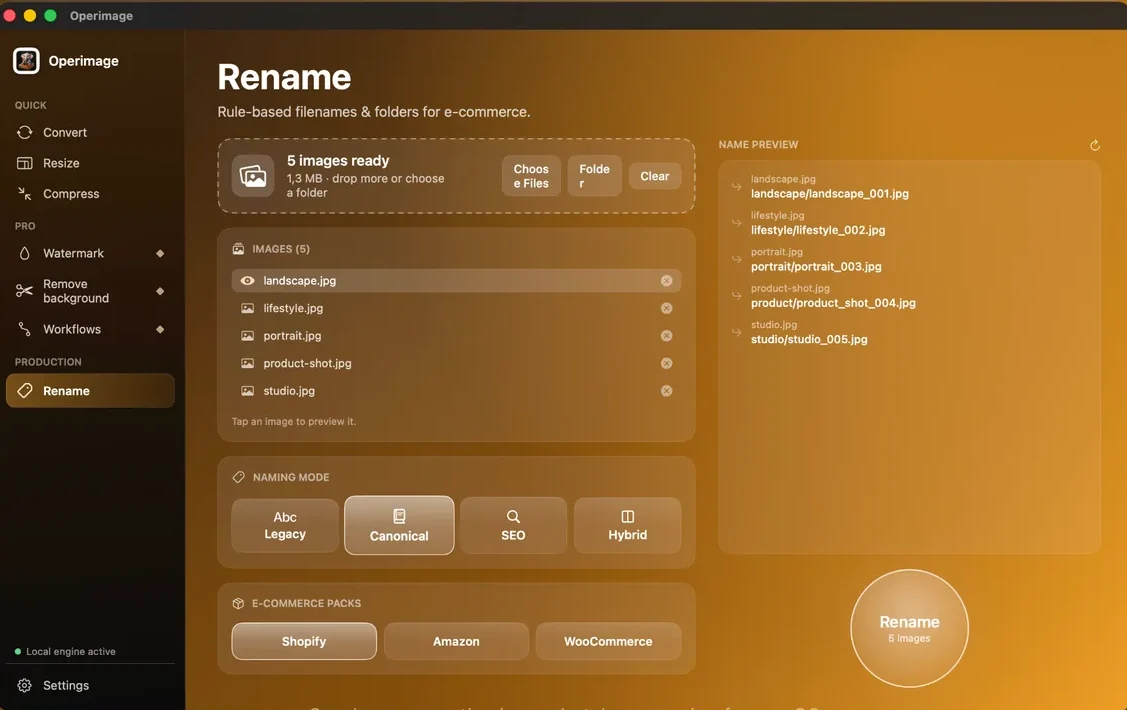
Operimage, a free Mac app, has a Rename tool built for repeatable batches. Choose Rename in the sidebar and drop files or click Folder. Pick one of the naming modes (Legacy, Canonical, SEO or Hybrid) or, for product photos, an e-commerce pack for Shopify, Amazon or WooCommerce. Then set the base name, counter and any tokens, and decide whether files should be sorted into folders.
The live name preview is the important part. As you change settings, Operimage shows the resulting name for each file, for example product-shot.jpg becoming product/product_shot_004.jpg when folder sorting is on. Read through the preview before you click Rename: it is the cheapest point to catch a collision, a missing variant or a name that is too long. Each mode produces a slightly different style, so compare them in the preview rather than guessing which one fits your destination.
When the names are right, click Rename and use Reveal output to check the result in Finder. Renaming runs on your Mac and does not overwrite originals unless you choose to, so you can keep the source folder intact while you check the new set.
Renaming product photos for an online store
Product images need names that tie each file to a product, a variant and a view, so that anyone on the team can find the blue medium front shot without opening forty files. A pattern such as product-variant-view (linen-shirt-blue-front.jpg, linen-shirt-blue-back.jpg) keeps related images together in any sorted list and stays readable in the store's media library.
Some marketplaces also expect a specific structure when you upload in bulk. Amazon's image naming for bulk uploads, for example, combines the product identifier with a view code, and Shopify matches images to products more easily when names are consistent. The detailed patterns are in the guide to naming e-commerce product images, and the Amazon listing image guide covers the image side of those uploads. Check each platform's current help page before a large upload, because requirements change.
For catalogs, rename as part of the export rather than as a separate pass. In Operimage you can save a Workflow that resizes, compresses and then renames, so the same rule produces the same names every time you run it.
- 1Raw product shotsIMG_5120.JPG … IMG_5184.JPG
- 2Resize + compressSquare frame, web-ready size
- 3RenameShopify pack, padded counter
- 4Upload folderlinen-shirt-blue-001.jpg …
Avoiding the most common batch rename mistakes
Most rename problems show up one or two steps later: an upload that maps the wrong image to a product, a gallery out of order, or a client who cannot tell which version is final. A short check before renaming prevents nearly all of them.
Order matters when counters are involved. Before numbering, sort the files the way you want them numbered, usually by capture date, and confirm the first and last few names in the preview. If you will also resize the whole set or strip metadata, do the rename in the same run so the final files carry the final names. If the renamed copies are going public, consider removing location data at the same time; the guide on how to remove location data before sharing photos explains the options.
- Collisions: two source files mapping to the same new name. Always read the preview for duplicates.
- Wrong order: numbering follows the sort order; sort by capture date before renaming.
- Changed rules mid-batch: switching padding or separators halfway leaves a mixed set that is hard to sort.
- Broken references: websites and layout files that point to the old names stop working.
- Overlong names: marketing phrases in filenames get truncated; keep names to a few words.
- Renaming the only copy: work on copies or keep originals until the new set is checked.
Step by step
Open Rename and load the images
Choose Rename in the Operimage sidebar, then drop files or click Folder to load the set you want to rename.
Choose a naming mode or pack
Pick a naming mode (Legacy, Canonical, SEO or Hybrid), or an e-commerce pack for Shopify, Amazon or WooCommerce if the files are product images.
Set the base name, counter and tokens
Enter the base name, set the counter and add any tokens you need, and decide whether files should be sorted into folders.
Check the live name preview
Read the preview of the new names, for example product-shot.jpg → product/product_shot_004.jpg, and confirm nothing collides or reads badly.
Rename and reveal the output
Click Rename, then use Reveal output to open the renamed files in Finder and spot-check the order.
Ways to batch rename photos on Mac
| Method | Best for | Counter padding | Preview before renaming | Repeatable |
|---|---|---|---|---|
| Finder Rename | Quick one-off cleanup | Fixed by format | Example name only | Re-enter each time |
| Photos export (Sequential) | Renaming while exporting from a library | No padding control | No | Re-enter each time |
| Shortcuts or Automator | Custom scripted jobs | Whatever you build | Only if you build it | Yes, once built |
| Operimage Rename | Repeated catalog and client batches | Set in the counter options | Live preview of every name | Yes, saved as a Workflow |
FAQ
How do I rename multiple photos at once on a Mac?
Select the photos in Finder, Control-click and choose Rename. Pick Replace Text, Add Text or Format, set the options, and click Rename to rename every selected file at once.
How do I rename photos in sequence on a Mac?
In Finder's Rename dialog, choose Format, then Name and Counter or Name and Index, type a base name and set the starting number. Name and Counter adds zero-padded numbers.
Can I undo a batch rename in Finder?
Usually yes, with Edit → Undo Rename (Command-Z) right after renaming, as long as you have not made other changes. For large or important sets, rename copies so the originals are always available.
How do I rename photos when exporting from Photos on a Mac?
Choose File → Export, then set File Name to Sequential and enter a prefix. The exported copies are numbered while the photos in your library keep their names.
Should image filenames use hyphens or underscores?
Hyphens are the safer default for images that go on the web, because they are the conventional word separator in URLs. Some marketplace naming schemes use other separators, so follow the platform's rules where they exist.
Does renaming a photo change its quality or metadata?
No. Renaming changes only the filename; the pixels, EXIF data and location information inside the file stay exactly the same.