Amazon product image requirements in short
Amazon's core image rules are short. Every listing needs a main image that is a professional photo of the actual product, on a pure white background (RGB 255,255,255), with the product filling about 85% of the frame and no text, logos, watermarks, borders or extra props. Images should be at least 1000 px on the longest side, which is the size that enables zoom on the product page, and Amazon accepts images up to 10,000 px on the longest side.
JPEG is the preferred file format, with PNG, TIFF and non-animated GIF also accepted. Amazon accepts sRGB and CMYK, but sRGB is the safe choice for screen display. These are the well-established rules; Amazon's Seller Central help page on product image requirements is the authority, and some categories add their own style rules.
The rest of this guide covers how to meet those rules consistently across a catalog. If you sell on several channels, the e-commerce image optimization guide shows how one master set feeds Amazon, Shopify and Etsy.
- 255, 255, 255Main image background (pure white)
- ~85%Share of the frame the product should fill
- 1000 px+Longest side to enable zoom
- 10,000 pxLargest accepted longest side
Main image vs secondary images: what is allowed?
The main image is the one shown in search results, so Amazon applies its strictest rules there. Secondary images, also called additional or alternate images, are where you explain the product: other angles, the product in use, scale against a hand or a room, close-ups of materials, what is in the box, and infographics with callouts and text.
Use the additional slots in a deliberate order. A common sequence is the main packshot, then the back or side, then a close-up of the key material or feature, then a scale or in-use shot, then an infographic with dimensions, and finally packaging or what is in the box. A consistent order across a product line makes the whole brand look organized.
Because the rules differ, prepare the two groups as separate presets. The main image preset focuses on background and fill; the secondary preset only needs size, color and file weight.
Main image
Shown in search
- Pure white background, RGB 255,255,255
- Product fills about 85% of the frame
- No text, logos, watermarks, borders or props
- Only the product being sold
Secondary images
Gallery
- Lifestyle and in-use scenes allowed
- Infographics, callouts and dimensions allowed
- Close-ups, packaging and alternate angles
- Same size and color rules for zoom
Verdict: Keep a strict preset for the main image and a lighter one for the rest of the gallery.
What size should Amazon product images be?
At least 1000 px on the longest side is the line that matters: below it, shoppers cannot zoom into the image on the product page. Above it, more resolution gives a sharper, deeper zoom, which is why many sellers export at around 1600 to 2000 px or more. A 2000 px square is a practical default: it is comfortably over the zoom threshold, far under the 10,000 px maximum, and quick to upload.
Amazon does not require square images, but square or near-square photos fill the search result tile best, since a very tall or very wide product leaves large white areas. Resize from full-resolution masters in a single step, and avoid upscaling small photos, because zoom exposes the missing detail immediately. The guide to resizing whole folders of photos on Mac covers longest-side resizing in bulk.
Amazon image size reference (confirm in Seller Central)
| Setting | Value | Why it matters |
|---|---|---|
| Zoom threshold | 1000 px+ on the longest side | Below this, zoom is not available |
| Practical export | About 2000 px on the longest side | Sharper zoom with margin |
| Maximum | 10,000 px on the longest side | Larger files are rejected |
| Product fill | About 85% of the frame | Product reads clearly in search |
| Preferred format | JPEG, sRGB | Predictable color and small files |
How to get a pure white background for the Amazon main image
Pure white means every background pixel is exactly RGB 255,255,255. Photos shot on a white sweep often come out at 240 to 250, a light gray that looks white to the eye but not to a compliance check. You can test any pixel with Digital Color Meter, found in the Utilities folder on macOS: hover over the background and read the RGB values.
There are two ways to get there. The first is in the studio, by lighting the background a little brighter than the product so it records as pure white. The second is in post: cut the product out and place it on a pure white canvas. An offline background remover on Mac does the cutout on-device, which matters if the listing is for an unreleased product.
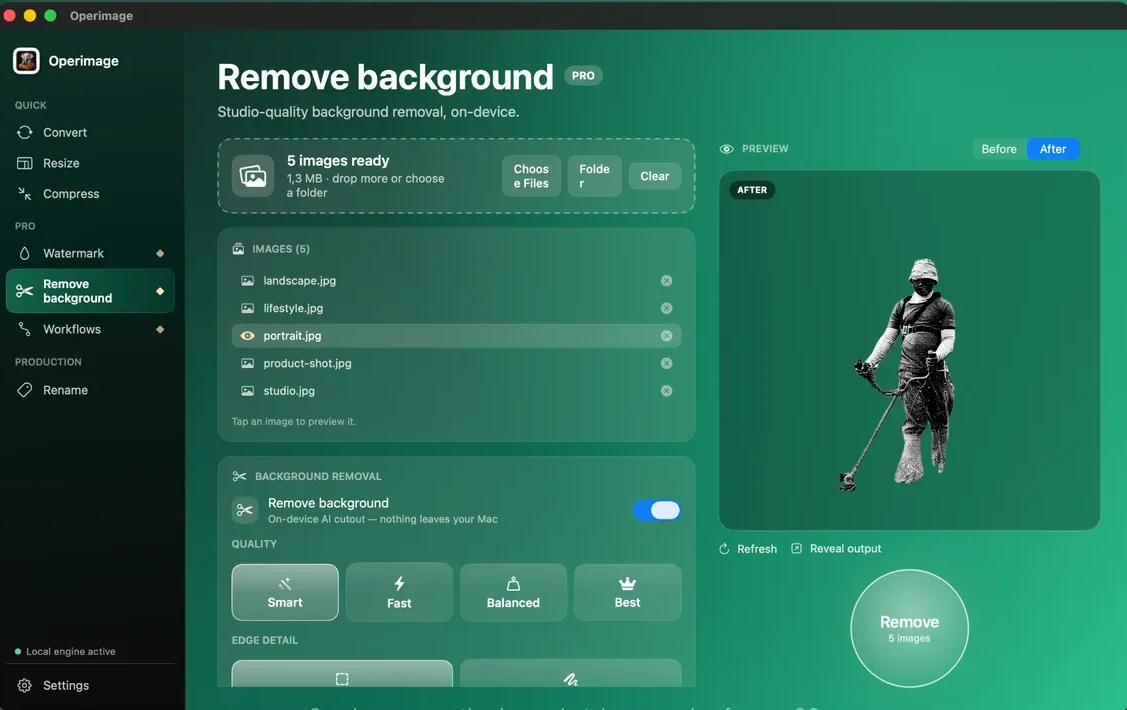
Operimage's Remove background tool outputs transparent PNG or WebP cutouts, with Smart, Fast, Balanced and Best quality modes and an edge-detail option for hair and fabric. Since Amazon needs an actual white background rather than transparency, place the cutout on a white canvas in an editor such as Preview, export it as JPEG, and check the corners with Digital Color Meter before upload.
File format, color and file weight
Export Amazon images as JPEG in sRGB. JPEG is Amazon's preferred format and keeps files small; sRGB ensures that colors look the same in the listing as they did on your screen, while files left in Display P3 from an iPhone or Adobe RGB from a camera can display less saturated in some places. If a supplier sends CMYK TIFFs from a print workflow, convert those TIFFs to JPG in sRGB first.
Amazon cares more about resolution than about file size, so do not compress aggressively. Zoom magnifies blocky JPEG artifacts and soft edges, so a quality around 85% for a 2000 px image is a sensible starting point. Check a detailed product at 100% in the preview before running the batch.
Also strip camera metadata. EXIF data adds nothing to a listing, and phone photos can include the GPS location where the product was shot; the guide to removing location data from photos shows how to confirm it is gone.
How to name image files for Amazon bulk upload
Amazon's image upload tool in Seller Central matches files to listings by filename. The documented pattern is the product identifier (such as the ASIN, or an ISBN, UPC or EAN), then a period, then a variant code, then the extension. MAIN marks the main image, PT01 to PT08 mark additional images, and SWCH marks a swatch. Do not add spaces, dashes or extra characters to the identifier.
Generating those names by hand for hundreds of files is where mistakes creep in. Rename in the same batch as the resize so every exported file already carries its final name; the product photo naming guide explains how to keep SKU-based internal names alongside Amazon's upload names. Operimage's Rename tool includes an Amazon pack with a live name preview.
Amazon image filename pattern
| Image | Variant code | Example filename |
|---|---|---|
| Main image | MAIN | B0XXXXXXXX.MAIN.jpg |
| Additional image 1 | PT01 | B0XXXXXXXX.PT01.jpg |
| Additional image 2 | PT02 | B0XXXXXXXX.PT02.jpg |
| Swatch | SWCH | B0XXXXXXXX.SWCH.jpg |
Can you prepare Amazon images with built-in Mac tools?
For a few listings, macOS covers the basics. Preview can open a selection of images, resize them together with Tools › Adjust Size so the longest side is 2000 px, and export each as JPEG with a quality slider. Preview's Instant Alpha can remove a simple background on a single image, and Digital Color Meter confirms whether the result is pure white. Finder can batch rename selected files, though building identifier.CODE names for every product by hand is slow.
In Terminal, sips -Z 2000 *.jpg scales every image so its longest side is 2000 px, and sips can convert color to an sRGB profile with its --matchTo option. Remember that sips overwrites the files it processes unless you pass --out with a separate folder.
These tools struggle when a batch mixes backgrounds, sizes and naming at the scale of a full catalog, and each step runs separately. A batch app that keeps cutout, resize, compression and renaming together, with a preview before export, is faster from a few dozen products upward.
A batch workflow for Amazon catalogs on Mac
For more than a handful of listings, set up two presets and run the catalog through them. Operimage, a free Mac app, keeps every step on-device and can save the chain as a Workflow.
- Main image preset: background check or cutout, resize to 2000 px on the longest side, JPEG at about 85%, metadata stripped, Amazon rename pack.
- Secondary image preset: same size and color settings, no background change, sequence codes PT01 onward.
- Folders: one folder per SKU in, one Amazon export folder out, with the source structure kept.
- Safety: originals are never overwritten unless you choose to, so you can rerun the preset after a fix.
- Reuse: a 2000 px square also suits Shopify; Etsy needs a separate 4:3 export.
Amazon image QA checklist before upload
A quick pass over the output catches the problems that lead to suppressed listings or a poor zoom experience. Check at least the main image of every product and a sample of the secondary images.
Before uploading to Seller Central
- Main image background reads 255,255,255 in Digital Color Meter, including corners
- Product fills about 85% of the main image with no text, logos or props
- Longest side is at least 1000 px (2000 px recommended)
- Files are JPEG in sRGB with no visible artifacts at zoom
- EXIF and GPS metadata removed
- Filenames follow identifier.CODE.jpg with no spaces or dashes
- Category style guide checked for extra rules
Troubleshooting Amazon image problems
If an image is rejected or a listing loses its main image, the cause is usually one of these.
- Main image suppressed: the background is near-white, a shadow or reflection reaches the edge, or there is text or a logo. Rebuild on pure white.
- Zoom not available: the image is under 1000 px on the longest side. Re-export from the master at 2000 px.
- Upload does not attach to the listing: the filename does not match the identifier.CODE pattern, or it contains spaces or extra characters.
- Colors look dull: the file kept a wide-gamut or CMYK profile. Convert to sRGB.
- Product looks small in search: it fills far less than 85% of the frame. Crop tighter around the product before resizing.
Step by step
Collect product shots into one folder per SKU
Group each product's images in its own folder and drop the parent folder into Operimage. Subfolders are kept so each product stays together.
Clean up main-image backgrounds
Run main shots that were not taken on pure white through Remove background, then place the cutouts on a pure white canvas and verify the background reads 255,255,255.
Resize the longest side to 2000 px
In Resize, use Manual resize with 2000 px on the longest side (at least 1000 px is required for zoom). Check the Before/After preview on a few products.
Compress as sRGB JPEG and strip metadata
In Compress, keep JPEG output at a high quality around 85%, and turn on metadata stripping to remove EXIF and GPS data.
Rename with the Amazon pack and export
In Rename, choose the Amazon e-commerce pack, confirm the live name preview matches your identifiers and variant codes, run it, and click Reveal output.
FAQ
What size should Amazon product images be?
At least 1000 px on the longest side, which enables zoom. Many sellers export around 2000 px for sharper zoom, and Amazon accepts up to 10,000 px on the longest side.
Does the Amazon main image need a white background?
Yes. The main image must show the product on a pure white background, RGB 255,255,255, with no text, logos, watermarks or props. Secondary images can use lifestyle scenes and infographics.
How much of the image should the product fill on Amazon?
The product should fill about 85% of the main image frame. That keeps it clearly visible in search results without being cut off.
What file format does Amazon prefer for product images?
JPEG is preferred, and PNG, TIFF and non-animated GIF are also accepted. Export in the sRGB color space for consistent color on screens.
Do Amazon product images have to be square?
No, but square or near-square images fill the search tile best. A 2000×2000 px square is a common, safe choice.
How do I name image files for Amazon bulk upload?
Use the product identifier, a period, a variant code and the extension, such as B0XXXXXXXX.MAIN.jpg for the main image and B0XXXXXXXX.PT01.jpg for the first additional image. Avoid spaces and dashes.
How do I check if my background is pure white?
Open Digital Color Meter from the Utilities folder on your Mac, hover over the background in several places, and confirm it reads 255, 255, 255.