Pinterest image size in 2026 at a glance
Pinterest recommends a 2:3 aspect ratio for image Pins, or 1000 × 1500 pixels. That tall shape suits Pinterest's multi-column feed, where vertical images take up more space and draw the eye. Pinterest's Pin specs page also accepts 1:2, 3:4, 4:5 and 1:1, but warns that Pins with an aspect ratio taller than 2:3 might get cut off in people's feeds.
Image Pins can be uploaded as BMP, JPEG, PNG, TIFF or WebP, with a 20 MB maximum file size on the web. Pinterest converts every upload to a standard 8-bit RGB JPEG before turning it into a Pin, so the format you upload matters less than starting with a clean, correctly sized file. For how Pinterest's 2:3 standard compares with every other network, see the social media image size cheat sheet.
Pinterest image sizes
| Use | Size (px) | Ratio | Notes |
|---|---|---|---|
| Standard Pin | 1000 × 1500 | 2:3 | Pinterest's recommendation |
| Square Pin | 1000 × 1000 | 1:1 | Accepted; less feed space |
| Portrait Pin | 1000 × 1250 | 4:5 | Accepted |
| Tall Pin | 1000 × 2000 | 1:2 | Accepted, but may be cut off in feeds |
| Full-screen Pin | 1080 × 1920 | 9:16 | Offered in the Pin editor; may be cut off in feeds |
| Carousel Pin | 1000 × 1500 or 1000 × 1000 | 2:3 or 1:1 | 2–5 images, same ratio, PNG or JPEG |
| Profile cover (business) | 1920 × 1080 or larger | 16:9 | At least 800 × 450 |
- Square1000 × 1000 · 1:1
- Portrait1000 × 1250 · 4:5
- Standard Pin1000 × 1500 · 2:3
- Tall Pin1000 × 2000 · 1:2
Why 2:3 is the standard Pin size
Pinterest's home feed is a grid of columns where every Pin has the same width and its height follows its aspect ratio. A 2:3 Pin is half again as tall as it is wide, so it occupies more of the column than a square Pin without becoming so long that Pinterest truncates it. That balance is why Pinterest names 2:3 as its recommendation for both organic Pins and ads.
Width is less critical than ratio, because Pinterest scales images to the column width. 1000 pixels wide is enough to look sharp on high-resolution phones and desktop screens while keeping files small. Uploading a 4000 × 6000 export gives Pinterest more to downsize but no visible improvement. Going far below 1000 pixels wide, on the other hand, can look soft when someone opens the Pin in close-up.
If your source photos are 3:2 landscape, which is the default for most cameras, a 2:3 Pin is the same shape turned on its side. A vertical camera photo converts to 2:3 with no cropping at all, while a horizontal one loses most of its width. Shoot or select vertical frames for Pinterest whenever you can.
- 2:3 (1000 × 1500): the default for every image Pin.
- 1:1 (1000 × 1000): fine for product tiles and quote cards; less presence in the feed.
- 4:5 and 3:4: accepted shapes that reuse Instagram or catalog exports.
- 1:2 and 9:16: very tall; useful for infographics or full-screen designs, but may be cut off in feeds.
Do tall Pins and infographics still work?
Long Pins were once a popular tactic for infographics and step-by-step guides. Pinterest still accepts a 1:2 ratio, such as 1000 × 2000, and its Pin editor offers 9:16, but its own guidance warns that anything taller than 2:3 might be cut off in the feed. When a Pin is truncated, the top part shows in the feed and the rest only appears after someone opens the Pin.
If you design tall Pins, put the headline and the main image in the top 1500 pixels so the truncated version still makes sense. For most content, splitting a long infographic into a 2:3 Pin that teases the content, or into a carousel of 2:3 slides, gives a more predictable result.
2:3 standard
Recommended
- Shown in full in the feed
- Pinterest's own recommendation for Pins and ads
- Easy to produce in bulk from vertical photos
1:2 or 9:16 tall
Use with care
- Fits long infographics and lists
- May be cut off in people's feeds
- Headline must sit in the top section
Verdict: Default to 2:3; go taller only when the content genuinely needs the length and still reads when truncated.
Pinterest safe zones and text placement
Pinterest overlays buttons and labels on Pins, especially on full-screen views on phones. Its Pin specs page lists safe zones for text and key elements: 270 px from the top, 65 px from the left, 195 px from the right and 790 px from the bottom. Those margins are sized for tall, full-screen designs such as 1080 × 1920; on a 1000 × 1500 Pin, the practical takeaway is to keep text away from the bottom edge and the right-hand side.
In the feed, Pins are small. A column on a phone is only a few hundred pixels wide, so headline text needs to be large, short and high-contrast. Test a design by shrinking it to around 250 pixels wide and judging whether the headline still reads.
Pinterest titles can be up to 100 characters and descriptions up to 800, so the image does not need to carry every detail. Put the hook in the image and the keywords in the title and description.
Pin check before upload
- Exactly 1000 × 1500 px (2:3) unless you chose another accepted ratio
- Headline readable when the Pin is shrunk to about 250 px wide
- No text along the bottom edge or the right-hand side
- Exported in sRGB so colors survive Pinterest's JPEG conversion
- Under 20 MB; a 1000 × 1500 JPEG is usually far smaller
- File named with the topic so it is easy to match to its link
File formats, file size and color
For organic Pins, Pinterest accepts BMP, JPEG, PNG, TIFF and WebP. The web uploader allows up to 20 MB per image. Ad images use PNG or JPEG, with Pinterest's ad guidance listing 20 MB for desktop tools and 32 MB for in-app tools.
Because Pinterest converts every image to an 8-bit RGB JPEG, its ad guidance suggests uploading PNG files in sRGB to avoid an extra round of quality loss. In practice, a high-quality JPEG at 85–90% in sRGB also looks clean after conversion and uploads faster. What to avoid is a heavily compressed JPEG that Pinterest then compresses again, or a Display P3 file that shifts color when the profile is dropped.
If your images come from a website or a design tool as WebP or PNG with transparency, flatten them onto a solid background first; transparent areas have no meaning in a JPEG and may turn black or white.
- Formats: JPEG or PNG are the safe choices; BMP, TIFF and WebP are also accepted for organic Pins.
- File size: 20 MB on the web; ads allow 32 MB in-app.
- Color: sRGB, 8-bit; Pinterest converts to RGB JPEG anyway.
- Transparency: flatten onto a background before uploading.
Carousel Pins, profile covers and board covers
Carousel Pins hold 2 to 5 static images, and Pinterest's specs allow 1:1 or 2:3 for them, so resize the whole set to one ratio before uploading. Each image can be up to 20 MB as PNG or JPEG. A carousel is a good way to show a product from several angles or to split a tutorial into steps without resorting to a very tall Pin.
Business accounts can add a profile cover. Pinterest asks for an image of at least 800 × 450 pixels and recommends a horizontal 16:9 shape, so 1920 × 1080 is a sensible export. Board covers are chosen from Pins already saved to the board, so they inherit the Pin's ratio; a strong 2:3 Pin makes a strong cover. Your profile picture is shown as a circle, so center the face or logo in a square image.
Sellers who pin product photos can reuse the same originals as their shop listings. The Etsy listing photo guide covers marketplace sizes that pair well with a 2:3 Pin export.
How to resize images for Pinterest on a Mac
Preview on macOS can resize many images at once with Tools → Adjust Size, but it cannot crop a batch to 2:3, so each Pin needs a hand-drawn crop. Photos on macOS offers a 2:3 crop preset one image at a time. Both work for a few Pins; neither is practical when you are creating Pins for a whole blog archive or product catalog.
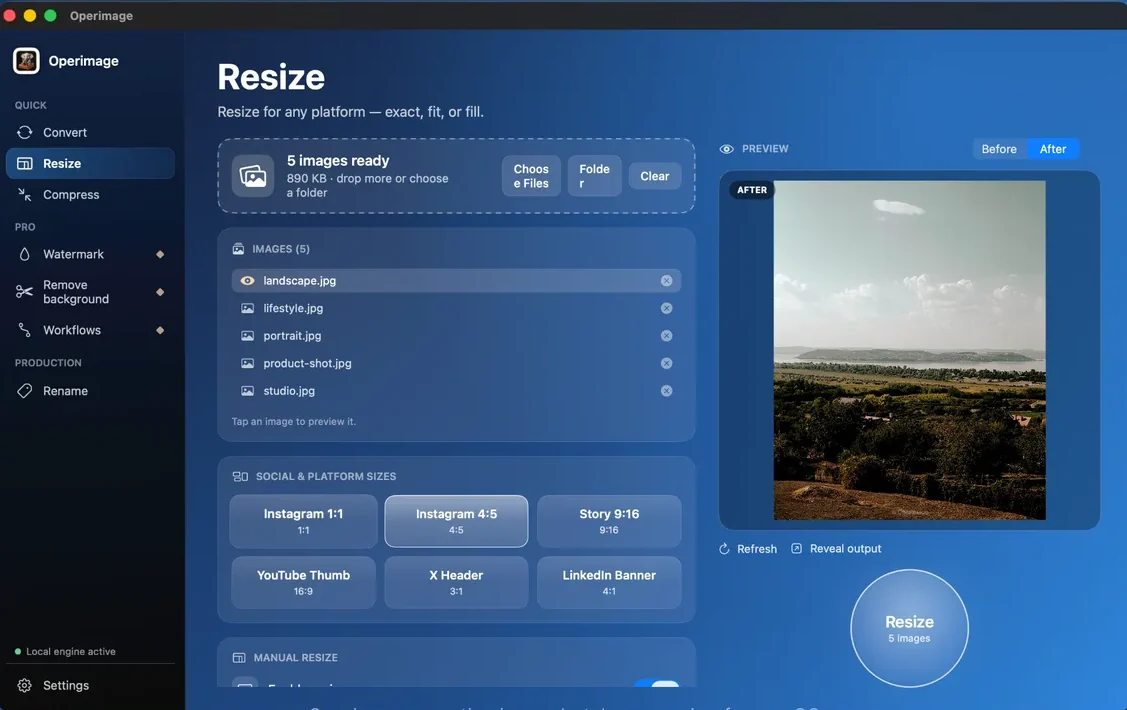
Operimage, a free Mac app, crops and resizes in one pass. Open Resize, drop in the images or choose the folder, choose Manual resize and enter 1000 × 1500. Set the mode to Fill so every output is exactly 2:3, then click through the list in the Before/After preview to check that each subject stays in frame. Click Resize, and Reveal output opens the new copies in Finder; your originals are not touched. The general guide to bulk resizing on a Mac explains when Fit is a better choice than Fill.
Everything runs on your Mac, so client images and unreleased products are never uploaded to a resizing website. If your Pins carry branding, add your logo to every Pin in one batch after resizing, placed in the upper area rather than the bottom corner where Pinterest's controls sit.
A repeatable Pin workflow for blogs and shops
Bloggers and shops usually make Pins from images they already have: blog headers, product shots and Instagram posts. Keep the edited originals in one folder, then generate the 2:3 Pins from them with a saved Workflow in Operimage, such as resize to 1000 × 1500, add a logo, then rename. Rerun it whenever new posts or products go live.
Name each Pin after its topic, such as summer-salad-recipe-pin.jpg, so it is easy to match to the right link when scheduling. The same originals can feed other networks in the same session; the TikTok photo size guide shows the 9:16 version, and the LinkedIn image size guide covers professional posts.
- 1Source imagesBlog headers and product shots
- 2Resize with Fill1000 × 1500, 2:3
- 3Logo + renameLogo top-left, topic-based names
- 4Schedule PinsTitle up to 100 characters
Why do my Pins look blurry or cropped?
Most Pinterest image problems come from the shape or the starting resolution. Check these before redesigning.
- Pin cut off in the feed: the ratio is taller than 2:3. Resize to 1000 × 1500 or move the key content to the top.
- Pin looks blurry: the source was too small, or it was a screenshot. Start from an image at least 1000 px wide.
- Colors look dull: the file was Display P3 or CMYK. Export in sRGB.
- Black background around a logo: a transparent PNG was converted to JPEG. Flatten it onto a background first.
- Upload rejected: the file is over 20 MB or in an unusual format. Export a JPEG at 1000 × 1500.
Step by step
Open Resize and load your images
In Operimage, choose Resize in the sidebar and drop in the images for your Pins, or click Folder to load a whole set.
Enter 1000 × 1500 under Manual resize
Pinterest has no built-in preset, so choose Manual resize and type a width of 1000 and a height of 1500 for standard 2:3 Pins.
Use Fill and check the crops
Set the mode to Fill so every Pin is exactly 2:3, then click through the list in the Before/After preview to confirm the subject is not cut off.
Resize and reveal the output
Click Resize, then Reveal output to open the Pin-ready copies in Finder. Originals stay untouched.
Save it as a Workflow
Save the resize, an optional watermark and a rename step as a Workflow so the next batch of Pins takes one click.
FAQ
What is the best Pinterest image size in 2026?
1000×1500 pixels at a 2:3 aspect ratio. Pinterest recommends this size for standard image Pins and ads.
What aspect ratios does Pinterest accept?
Pinterest accepts 2:3, 1:1, 4:5, 3:4 and 1:2 for image Pins. Pins taller than 2:3 may be cut off in feeds.
What is the maximum file size for a Pinterest image?
20 MB for images uploaded on the web. Ad images can be up to 32 MB when uploaded with Pinterest's in-app tools.
Are long Pins still good on Pinterest?
They still upload, but Pinterest warns that Pins taller than 2:3 might get cut off in feeds. Keep the headline in the top section or use a carousel instead.
What size is a Pinterest profile cover?
Pinterest asks for at least 800×450 pixels and recommends a horizontal 16:9 image, such as 1920×1080. Profile covers are available to business accounts.
Should I upload PNG or JPG to Pinterest?
Both work. Pinterest converts uploads to 8-bit RGB JPEG, so use sRGB and either a PNG or a high-quality JPEG to avoid extra quality loss.
How do I resize many images for Pinterest at once on a Mac?
Use a batch resizer with an exact size. In Operimage, a free Mac app, choose Manual resize, enter 1000×1500, set Fill and resize the whole folder on your Mac.