How to convert JPG to AVIF on Mac
To convert JPG to AVIF on a Mac, use a tool that includes an AVIF encoder. macOS Ventura (13) and later can open and display AVIF in Preview, Quick Look and Safari, but Preview's Export menu, Finder's Convert Image Quick Action and the sips command cannot save AVIF. Your options are the free avifenc command-line tool, an online converter or a Mac app.
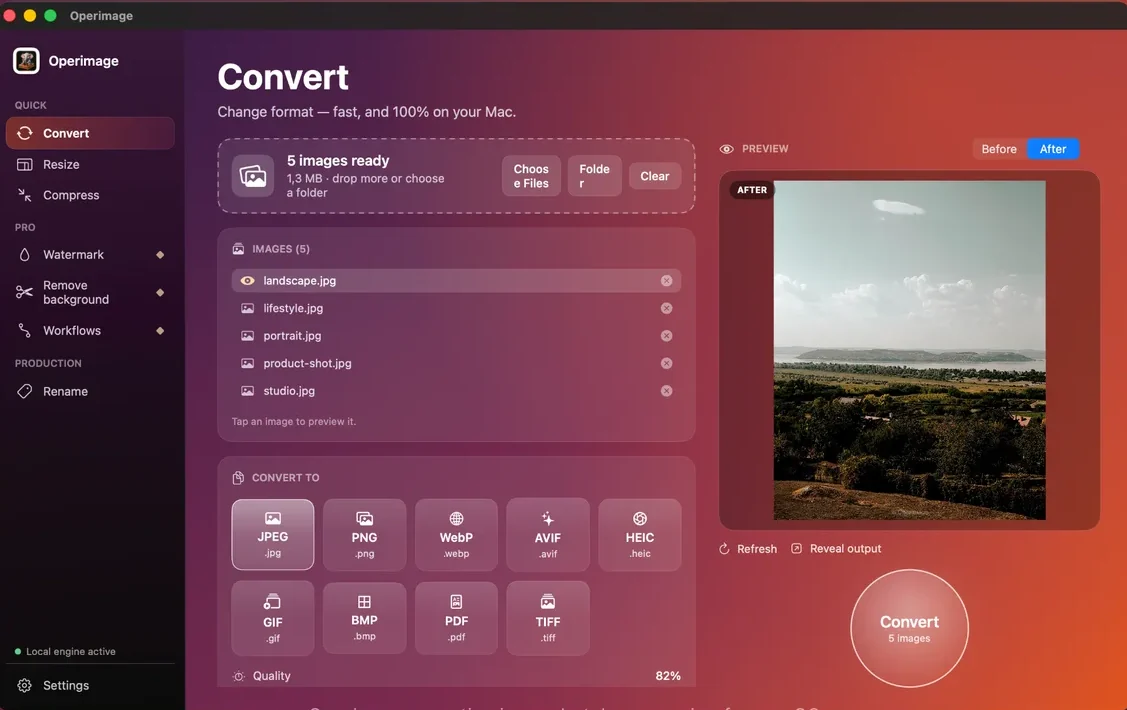
In Operimage, a free Mac app, the process takes a minute: choose Convert, drop the JPG folder, pick AVIF, set quality to about 65%, check a detailed image in the Before/After preview and click Convert. Everything is encoded on your Mac, and the JPGs are not overwritten. AVIF is one of nine output formats covered in the complete Mac image format converter guide, which is the place to start if you are still choosing a format.
- 1JPG library500 photos, resized to 2000 px
- 2Test subset20 images at 65% quality
- 3Convert to AVIFFull batch, overwrite off
- 4AVIF outputServed with JPG or WebP fallback
What is AVIF and why convert JPG to it?
AVIF (AV1 Image File Format) is an image format published by the Alliance for Open Media in 2019, built on the AV1 video codec. It supports lossy and lossless compression, transparency, 10- and 12-bit color, HDR and full-resolution color (4:4:4). For photographs, it typically produces files around half the size of an equivalent JPEG, and noticeably smaller than WebP, with fewer blocky artifacts at low file sizes.
Smaller images mean faster pages, better Largest Contentful Paint scores and lower bandwidth, which is why image-heavy sites such as photography portfolios, travel blogs, news sites and large online stores are the main beneficiaries. The trade-off is that AVIF is slower to encode and less widely accepted outside browsers. If you are weighing the two modern formats, the AVIF and WebP comparison sets out when each one wins.
Typical photo file size relative to JPEG
Does your website support AVIF?
Browser support is no longer the obstacle. Chrome added AVIF in version 85 (2020), Firefox in 93 (2021), Safari in 16 (2022, on macOS Ventura and iOS 16) and Edge in 121 (2024). Every current version of the major browsers displays AVIF.
The weak spots are everything around the browser. WordPress accepts AVIF uploads from version 6.5 onward, but only if the server's image library supports AVIF; otherwise the upload fails, which the WordPress image guide explains how to check. Many marketplace listing tools, email clients, social platforms and desktop apps still reject AVIF. Some platforms already convert uploads to AVIF or WebP automatically on their CDN, in which case uploading a high-quality JPG gives you the benefit without converting.
The safe pattern for your own site is to serve AVIF with a fallback: an HTML picture element lists an AVIF source first and a JPG or WebP image after it, and each browser picks the first format it supports. Many image CDNs and caching plugins do the same automatically by checking what the browser accepts. Either way, you need both files on the server, so keep the JPGs and add AVIF copies alongside them rather than replacing them. Name the AVIF files with the same base name as the JPGs, so photo-01.jpg pairs with photo-01.avif and templates can switch formats without a lookup table.
Built-in macOS tools and avifenc
Apple added AVIF decoding in macOS Ventura (13), so on a current Mac you can open AVIF in Preview, see thumbnails in Finder and press Space for Quick Look. Apple has not added an AVIF encoder to the system image framework that Preview, Finder Quick Actions, Shortcuts and sips share, so none of them list AVIF as an export format.
For a free command-line route, install libavif with Homebrew (brew install libavif) and use avifenc. In recent versions, avifenc -q 65 photo.jpg photo.avif encodes one file at quality 65, and a shell loop handles a folder. You get precise control but no visual comparison, and encoding a large folder can take a while, especially at slower speed settings.
Batch convert JPG to AVIF in Operimage
Operimage treats JPG to AVIF like any other conversion. Choose Convert in the sidebar, drop a folder on the window and wait for the “images ready” count. Select AVIF as the output format and set the quality slider.
Click through a few test images in the list and compare Before and After at full size. Pick a photo with fine texture (foliage, fabric, hair) and one with a smooth gradient (sky, studio backdrop). AVIF tends to smooth fine texture before it shows blocks, so look for plastic-looking surfaces rather than the blockiness you might expect from JPEG. When the samples look right, click Convert. Operimage keeps your folder structure, leaves the JPGs in place and opens the output with Reveal output.
Because AVIF encoding is heavier than JPEG or WebP, a big library takes longer to process. Run a representative subset of around 20 images first, then queue the full set and let it work.
What AVIF quality setting should you use?
Do not copy your JPEG quality number. AVIF's quality scale behaves differently, and an AVIF at 60–70% often looks comparable to a JPEG at 80–90% while being much smaller. Because each encoder maps its slider differently, treat these as starting points and decide with a side-by-side preview at the size the image will be displayed.
Raise quality for photos people inspect closely, such as product images and portraits, and lower it for large atmospheric backgrounds. If you have a fixed file size budget per image, check the AVIF file sizes Operimage writes for your test subset against that budget, and adjust the slider until the largest test file fits.
- Blog and editorial photos: 55–65%.
- Product photos and portraits: 65–75%.
- Full-width hero backgrounds: 50–60% after resizing to display width.
- Images with text overlays: 70%+ and check the lettering at 100% zoom.
- Thumbnails: 50–55% is usually plenty.
Resize, colors and metadata
Resize first. A 12-megapixel phone photo (4032 × 3024) is far larger than any content column needs, and AVIF encoding time grows with pixel count. Resizing to the largest displayed width, often 1600–2000 pixels, saves more bytes and time than any quality tweak. Operimage's Resize tool sets an exact width before conversion, and the guide to resizing whole folders on Mac explains how to choose dimensions and when to use fit or fill.
Color: AVIF supports wide-gamut and HDR color, but for ordinary web photos sRGB is still the safest choice. If your JPGs carry a Display P3 profile, test a few in Safari, Chrome and Firefox after conversion to make sure colors match.
Metadata: camera details and GPS coordinates can travel with the image. For public websites, strip location data; the guide to removing EXIF and location data explains what is kept and removed. If your sources are iPhone photos in HEIC, it is better to convert them directly than via an intermediate JPG; the HEIC conversion hub covers that.
Before converting a JPG library to AVIF
- Confirm your site, CMS or CDN accepts and serves AVIF
- Plan a JPG or WebP fallback for tools that cannot read AVIF
- Resize to the largest displayed width
- Test 20 representative images at 60–70% quality
- Check texture, gradients and text at 100% zoom
- Keep overwrite off and the JPG masters safe
- Strip GPS metadata for public pages
Should you use WebP instead?
WebP is the simpler choice when you need broad acceptance, fast encoding and a single format: it is about 25–34% smaller than JPEG, encodes quickly, and is accepted by more upload forms and tools. AVIF is the better choice when every kilobyte matters and you control how images are served.
Many sites do both: AVIF first, WebP or JPG as fallback. Operimage can produce each from the same JPG source, so you can run one batch per format and compare real file sizes on your own images before deciding. The JPG to WebP walkthrough covers the WebP side with its own quality settings.
Troubleshooting JPG to AVIF conversions
AVIF problems usually show up either in how the image looks or in where it can be used. These are the common ones.
- Surfaces look waxy or plastic: AVIF smooths fine texture at low quality. Raise quality by 5–10 points for textured photos.
- AVIF is larger than expected: quality is set close to 100%, or the image was not resized. AVIF gains most at moderate settings on well-sized images.
- Conversion is slow: AVIF encoding is computationally heavy. Resize first, test a subset, and let large batches run while you work on something else.
- Upload rejected: the platform does not accept AVIF. Upload the JPG master or a WebP copy instead.
- File won't open on a colleague's Mac: macOS versions before Ventura cannot display AVIF. Send JPG for review and keep AVIF for the website.
Step by step
Open Convert and load the JPGs
In Operimage, choose Convert in the sidebar and drop JPG files on the window, or click Folder to load a directory and its subfolders.
Choose AVIF as the output
Select AVIF from the nine output formats so every image in the list is encoded to AVIF with the same settings.
Start quality around 60–70%
AVIF holds up well at lower numbers than JPEG. Begin in this range for photos and raise it for product shots or portraits.
Compare Before and After
Click a detailed photo and one with smooth gradients, and compare at full size for smearing, banding or lost texture.
Convert and review the output
Click the round Convert button and use Reveal output to open the AVIF files in Finder. The original JPGs stay untouched.
JPG to AVIF methods on Mac
| Method | Writes AVIF | Batch | Preview of result | Privacy |
|---|---|---|---|---|
| Preview / Finder / sips | No (read only, macOS 13+) | Not applicable | Not applicable | Local |
| avifenc (Terminal) | Yes | With a shell loop | No | Local |
| Online converter | Yes | Often limited | Varies | Files uploaded |
| Operimage | Yes | Folders and subfolders | Before/After | Local, nothing uploaded |
FAQ
How do I convert JPG to AVIF on Mac?
Use a tool with an AVIF encoder, because Preview cannot save AVIF. In Operimage, choose Convert, add the JPGs, select AVIF, set quality to about 65% and click Convert.
Can Mac open AVIF files?
Yes, on macOS Ventura (13) and later. Preview, Quick Look and Safari display AVIF, but the built-in tools cannot export to AVIF.
How much smaller is AVIF than JPG?
AVIF files are often around half the size of a JPEG at similar visual quality. The exact saving depends on the image content and the settings used.
Is AVIF better than WebP?
AVIF usually compresses photos further than WebP, but it encodes more slowly and fewer tools accept it. WebP is the simpler single format; AVIF wins when file size is the priority.
What quality should I use for AVIF?
Start around 60–70% for photos and compare side by side. AVIF holds up at lower numbers than JPEG, so copying your JPEG setting usually wastes bytes.
Does WordPress support AVIF?
Yes, from WordPress 6.5, provided the server's image library supports AVIF. If uploads fail, ask your host or upload WebP or JPG instead.
Should I delete my JPG files after converting to AVIF?
No. Keep the JPGs as masters and fallbacks, because many upload forms, email clients and apps still cannot open AVIF.