How to convert HEIC to WebP on a Mac
To convert HEIC to WebP on a Mac, you need a converter that writes WebP, because the tools built into macOS do not. Preview, Finder's Convert Image Quick Action, the Photos app and the sips command can read HEIC and save JPEG, PNG, TIFF or HEIF, but none of them offers WebP as an output.
Operimage, a free Mac app on the Mac App Store, converts HEIC straight to WebP in one step: open Convert, drop in the photos or a folder, choose WebP, set quality around 80% and press Convert. Everything runs on your Mac, nothing is uploaded, and the originals are left alone.
If you are not sure WebP is the right target, the HEIC conversion hub compares JPG, PNG, WebP and the other options side by side. The short version: WebP for websites you control, JPG for everything else.
- 1HEIC photos38 iPhone shots, 4032 × 3024
- 2Convert to WebPQuality 80%, metadata stripped
- 3Web-ready WebPUpload to the CMS
Why convert iPhone photos to WebP instead of JPG?
WebP was designed by Google for the web. Google's own comparisons put lossy WebP at roughly 25–35% smaller than JPEG at similar visual quality, and smaller images mean faster page loads and better Largest Contentful Paint scores, one of the Core Web Vitals.
Browser support is no longer a concern for most sites: current versions of Chrome, Edge, Firefox and Safari all display WebP, and WordPress has accepted WebP uploads since version 5.8. If your audience uses up-to-date browsers, WebP is a straightforward win.
JPG is still the right call when you do not control what opens the file. Email clients, print labs, marketplaces with strict upload rules and clients on older software are safer with JPG. The guide to HEIC to JPG conversion covers that path.
Typical web file size for the same photo
What about the built-in macOS tools?
It is worth knowing exactly where the built-in tools stop, so you do not waste time looking for a hidden option. Preview can open WebP files on recent macOS versions, but its Export menu does not list WebP. Finder's Convert Image offers JPEG, PNG and HEIF. The Photos app exports JPEG, TIFF and PNG. sips does not write WebP either.
A free but clumsy workaround is two steps: convert HEIC to JPG or PNG with Finder or sips, then turn those files into WebP with Google's cwebp command-line encoder, which you can install with Homebrew. That works, but the JPG middle step adds a second round of lossy compression, the commands need care with file names, and you have no visual check.
Online converters do support WebP, but they require uploading your photos. For family pictures, client work or anything with location data in it, a local converter avoids the question of where the files end up.
Batch converting HEIC to WebP with Operimage
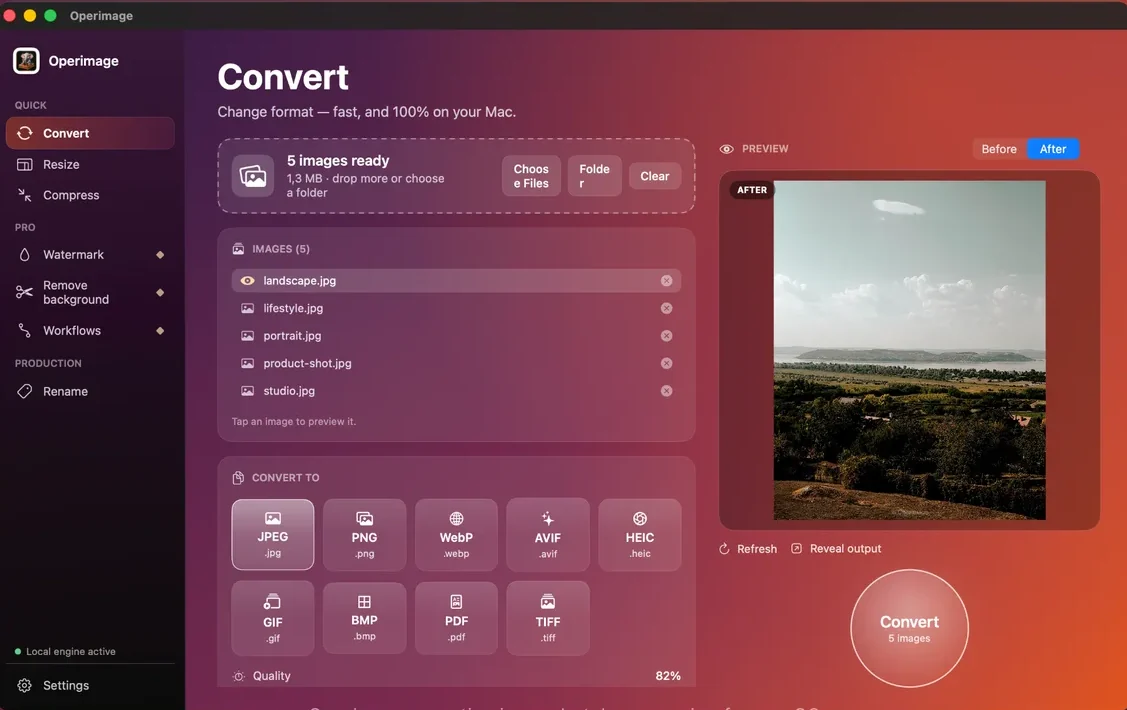
Operimage's Convert tool reads HEIC directly and writes WebP without a middle format, so each photo is compressed once. Drop the files into the window or click Folder to load a whole iPhone export; the status line shows how many images are ready.
Choose WebP, set the quality slider, and click one photo to compare Before and After. When it looks right, press the round Convert button. The app can keep the source folder structure, which is useful when photos are sorted by trip or date, and Reveal output opens the finished WebP files in Finder.
The same tool converts other formats too, so if your blog also has PNG screenshots or old JPGs, the JPG to WebP guide shows how to bring those into the same format, and the WebP format hub collects every WebP workflow.
What WebP quality and size should you use for the web?
Quality and pixel dimensions together decide how heavy each image is. Getting both right matters more than the format choice itself.
Quality: 75–82% is the sweet spot for most website photos. WebP's quality scale is not identical to JPEG's, so judge by eye in the preview rather than copying a JPEG number. Raise quality toward 90% for hero images with skies, gradients or skin, where low settings can show banding.
Dimensions: a standard 12 MP iPhone photo is 4032 × 3024 pixels, and 48 MP shots are 8064 × 6048. Few layouts display images wider than about 1600–2400 pixels even on high-density screens, so resize before or during conversion. Halving the width cuts the pixel count to a quarter, which saves far more than any quality tweak. Operimage's Resize tool handles exact widths, and a saved Workflow can run resize then convert in one pass.
If you publish on WordPress, the WordPress image compression guide explains how themes generate extra sizes from your upload, which changes what size you should upload in the first place.
- 75–82%WebP quality for most web photos
- 1600–2400 pxTypical long edge for blog images
- 16383 pxMaximum WebP width or height
Colors, metadata and transparency
iPhone photos use the Display P3 color profile. WebP files can carry an ICC profile, and modern browsers honor it, but some image pipelines and CDNs strip profiles to save bytes. If colors look duller on the live site than in the preview, the profile was probably dropped; serving sRGB images avoids the issue.
Metadata deserves a decision. iPhone photos carry EXIF with capture time, camera details and usually GPS coordinates. For a public website, strip it: it adds bytes and can reveal where you live or work. Operimage can remove EXIF and GPS during the batch.
Transparency is not a concern here. HEIC photos from a camera are fully opaque, so there is nothing to lose; WebP's alpha support only matters when converting cutouts or graphics.
- Display P3 photos: fine in modern browsers, but check them on the live site.
- GPS and EXIF: strip for anything public, keep in your HEIC archive.
- Live Photos: only the still image becomes WebP; the MOV video is separate.
- Portrait depth and HDR: flattened into a standard still image.
Do you need a JPG fallback for WebP images?
For most sites in 2026, no. Every current major browser displays WebP, so a single WebP version of each photo is enough for ordinary blog posts and pages. Many content management systems and image CDNs also generate their own fallbacks automatically.
A fallback still makes sense in two cases: when you know a meaningful share of visitors use outdated software, and when the same file is also offered as a download that people may open in older desktop apps or send by email. In those cases, convert a JPG set alongside the WebP set in a separate run, or keep WebP for display and link to the JPG for downloads.
Keep file names identical apart from the extension, such as harbor-sunset.webp and harbor-sunset.jpg, so templates and the picture element can pair them easily.
WebP or AVIF for iPhone photos?
AVIF often compresses photos further than WebP, sometimes close to half the size of a JPEG, and current major browsers support it. It is slower to encode and some CMS plugins and older apps still handle it less smoothly than WebP.
A practical rule: choose WebP when you want small files with the fewest compatibility surprises, and test AVIF if every kilobyte counts and your stack supports it. The AVIF versus WebP breakdown goes through the trade-offs in detail. Operimage can write either, so you can convert a sample both ways and compare.
Quality checks before the full run
Convert a small, varied sample first. Portraits, low-light scenes, skies and detail-heavy shots each stress the encoder differently, and if those look good the rest of the set will too.
If one group of photos needs different settings, such as product shots that need 90% while candid photos are fine at 78%, split them into separate runs instead of raising quality for everything.
Sample check for HEIC to WebP
- Skies and gradients show no banding at 100% zoom
- Skin tones look natural, not blotchy
- Low-light shots have no smeared detail
- Colors match the HEIC on the live page, not just in the app
- File sizes fit the page budget, ideally under about 200–300 KB for content images
- GPS data is gone if the site is public
Troubleshooting HEIC to WebP conversion
Most problems show up only after upload, so test a couple of files on the real site before converting a whole library.
- WebP file is larger than expected: the photo is probably still at full 4032 px resolution. Resize to the width your layout actually displays, then convert.
- Visible banding in skies: quality is too low for that image. Raise it to 85–90% for that group of photos only.
- CMS rejects the upload: older plugins, themes or hosted shops may not accept WebP yet. Convert that destination's images to JPG instead.
- Colors look flat on the site: an optimization plugin or CDN stripped the color profile. Serve sRGB images or adjust the plugin's metadata settings.
- Some HEIC files are skipped: they may be iCloud placeholders that were never downloaded. Download originals in Photos first, then convert.
- Old file names like IMG_4021.webp: rename the batch with descriptive, hyphenated names before publishing, which helps image search.
Step by step
Open Convert and add the HEIC photos
In Operimage, choose Convert in the sidebar, then drag in HEIC files or click Folder to load an iPhone export with its subfolders.
Choose WebP as the output format
Select WebP from the output formats. Every photo in the list will be saved as a .webp file.
Set quality between 75% and 82%
Drag the quality slider to about 80% for typical web photos. Raise it toward 90% for hero images where gradients matter.
Compare Before and After
Click a detailed or low-light photo in the image list and compare the Before/After preview. Press Refresh after changing quality.
Convert and reveal the WebP files
Press the round Convert button. The HEIC originals stay untouched; click Reveal output to open the WebP files in Finder.
HEIC to WebP workflow comparison
| Path | WebP output | Batch safety | Privacy | Best fit |
|---|---|---|---|---|
| Preview, Finder or Photos | No | Not applicable | Local | Convert to JPG first, then to WebP elsewhere |
| Online converter | Yes | Medium | Upload required | A few non-private files |
| Two-step Terminal (sips + cwebp) | Yes | Medium | Local | Scripted jobs if you accept a JPG middle step |
| Operimage | Yes | High | Local | Repeatable HEIC to WebP batches with preview |
FAQ
Can Preview convert HEIC to WebP?
No. Preview can open WebP on recent macOS versions, but its Export menu does not offer WebP. Use a converter that writes WebP, such as Operimage.
Why convert HEIC to WebP instead of JPG?
WebP is typically around 25–35% smaller than JPEG at similar quality, which speeds up websites. Use JPG when the files go to email, marketplaces or software you cannot test.
What quality should I use for WebP?
Around 75–82% suits most website photos. Raise it toward 90% for hero images with smooth gradients, and judge by eye in the preview.
Do all browsers support WebP?
Current versions of Chrome, Edge, Firefox and Safari all display WebP. Only very old browsers and some older desktop apps lack support.
Can I batch convert iPhone photos to WebP without uploading them?
Yes. Operimage converts HEIC to WebP locally on your Mac, including whole folders and subfolders, and nothing is sent to a server.
Should I keep the original HEIC files?
Yes. Treat WebP as the web delivery copy and keep the HEIC files as your archive, since they hold depth, HDR and Live Photo pairing that WebP does not.