The short fix: send JPG, not HEIC
If a Windows user cannot open your iPhone photos, convert them to JPG on your Mac and send the JPGs. Every Windows PC, web browser, email client and upload form opens JPG without extra software, so the problem is solved on your side and the recipient has nothing to install.
On a Mac, the fastest built-in route is Finder: select the photos, right-click, choose Quick Actions → Convert Image, set the format to JPEG and click Convert. For a whole shoot or a folder of client photos, a batch converter such as Operimage, a free Mac app, converts hundreds of HEIC files to JPG in one pass without touching the originals.
The recipient can also fix it on Windows by installing Microsoft's HEIF and HEVC extensions, which is explained below. That works for family PCs, but it is not something you can rely on for clients or office machines. For the complete set of conversion options on macOS, see the overview of HEIC converters for Mac.
- 1HEIC photos on MacFrom iPhone via AirDrop, iCloud or USB
- 2Convert to JPEGQuality about 85%, GPS removed
- 3Windows recipientOpens in Photos, browser or Office
Why Windows shows HEIC photos poorly
HEIC is Apple's default photo format on iPhone since iOS 11. It is a HEIF container holding images compressed with HEVC (H.265), the same codec used for high-efficiency video. Storing photos this way takes roughly half the space of JPG at similar quality, which is why Apple chose it.
Windows can read HEIF, but it does not include the HEVC decoder by default on every PC. Microsoft distributes that support as two separate packages in the Microsoft Store: HEIF Image Extensions, which lets Windows read the container, and HEVC Video Extensions, which decodes the image data inside it. Microsoft's own Store listing states that the HEVC package must be installed to view .heic files. Without both, the Windows Photos app shows an error or asks the user to download an extension, and File Explorer shows a generic icon instead of a thumbnail.
Some PCs ship with a manufacturer-provided HEVC codec already installed, which is why the same photos open fine on one Windows laptop and fail on another. Browsers add a second layer of trouble: Chrome and Edge do not display HEIC images in a web page, so a HEIC attachment opened in webmail or uploaded to a web form often shows as a broken image or a download.
The result is unpredictable from the sender's side. You cannot know which extensions a client's PC has, whether their IT department allows Store installs, or which app they will use to open the file. JPG removes every one of those variables.
Sending HEIC
Depends on their PC
- Opens only if HEIF and HEVC extensions are installed
- Generic icon in File Explorer without the codecs
- Not displayed in Chrome or Edge web pages
- Office PCs may block the Microsoft Store fix
Sending JPG
Works everywhere
- Opens in Windows Photos with no setup
- Thumbnails show in File Explorer
- Displays in every browser, webmail and upload form
- Pastes into Word, PowerPoint and Outlook
Verdict: For anything you send to someone else's PC, JPG is the safe default.
How to open HEIC files on Windows (the recipient's fix)
If the person on Windows controls their own PC and wants to open HEIC files directly, the fix takes a few minutes. Share these steps with them, or follow them yourself on a family computer.
After both packages are installed, HEIC photos open in the Windows Photos app and thumbnails appear in File Explorer. If Photos still shows a message that an HEVC extension is required, the HEVC package is missing or did not finish installing. Microsoft lists HEVC Video Extensions as a paid Store item in some regions, and some PCs already carry a free manufacturer version, so check what is installed before buying anything.
- Install HEIF Image Extensions: open the Microsoft Store, search for HEIF Image Extensions and install it.
- Install HEVC Video Extensions: search the Store for HEVC Video Extensions and install it. Microsoft says both are needed, even for photos only.
- Restart Photos: close the Windows Photos app and open the HEIC file again, or sign out and back in if thumbnails still do not appear.
- Office PCs: if the Store is blocked, the user's IT department has to deploy the extensions; otherwise ask the sender for JPG.
- Other software: some third-party viewers and editors include their own HEIC support, but behavior varies by version, so JPG remains the simpler request.
What the Windows recipient sees, and what fixes it
| Symptom on Windows | Likely cause | Fix on Windows | Fix from your Mac |
|---|---|---|---|
| Photos asks for an extension | HEVC codec missing | Install HEVC Video Extensions | Send JPG |
| Blank icon in File Explorer | HEIF or HEVC support missing | Install both extensions | Send JPG |
| Broken image in webmail | Browser cannot display HEIC | Download and open locally | Send JPG |
| Upload form rejects the file | Site accepts JPG/PNG only | None on Windows | Send JPG |
| Store install blocked | Company policy | Ask IT to deploy codecs | Send JPG |
The reliable fix on your Mac: convert HEIC to JPG before you send
Converting on the Mac is the only fix you fully control. macOS has several built-in ways to do it, and all of them run locally, so client photos are never uploaded to a conversion website. Pick the one that matches how many photos you are sending.
For a handful of photos, Finder or Preview is enough. For a full shoot, an event album or a weekly client delivery, the built-in tools start to strain: Finder drops copies next to the originals, and Preview becomes slow with hundreds of open files. That is where a batch app saves real time. The step-by-step details for every built-in method are in the guide to converting HEIC photos to JPG on a Mac.
- Finder Quick Action: select photos, right-click → Quick Actions → Convert Image → JPEG. Choose an image size and whether to preserve metadata.
- Preview: open the photo, choose File → Export, set Format to JPEG and adjust the Quality slider. Select several thumbnails and use Export Selected Images for a small batch.
- Photos app: select the photos, choose File → Export → Export Photos, set Photo Kind to JPEG and untick location information if you do not want to share it.
- Terminal: sips -s format jpeg IMG_0412.HEIC --out IMG_0412.jpg converts one file; a loop handles a folder.
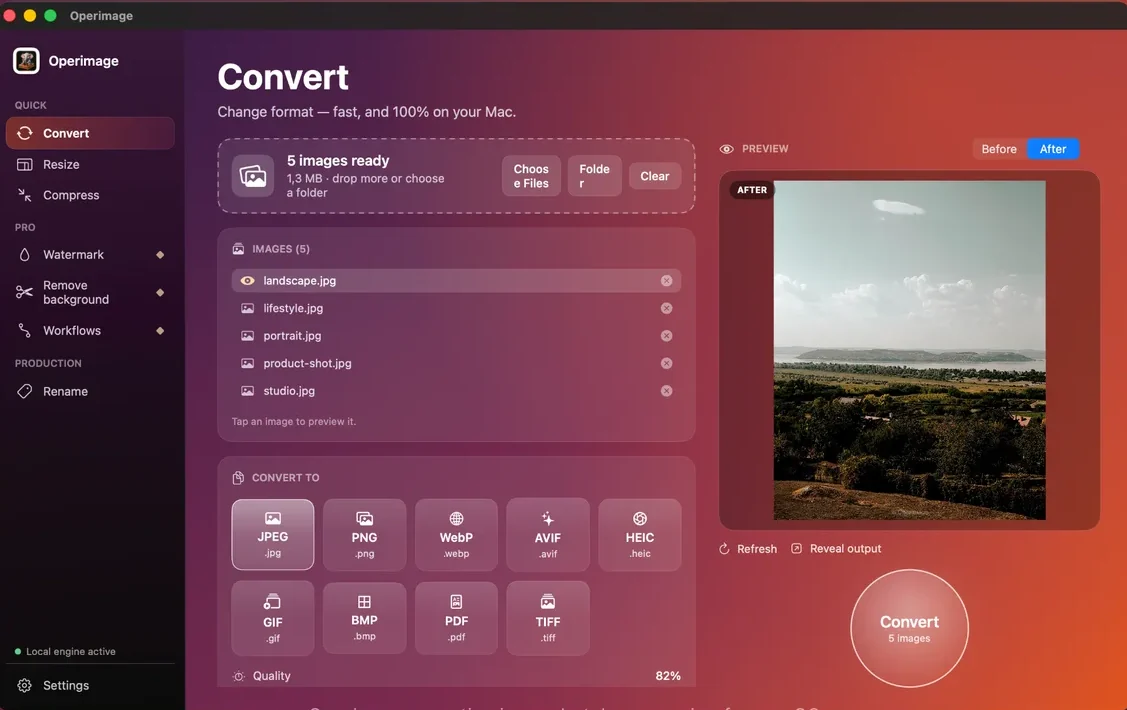
- Operimage: drop the folder into Convert, choose JPEG, set quality once and convert the whole batch with folder structure kept.
How to batch convert HEIC for Windows users with Operimage
Operimage is a free Mac app that converts, resizes and compresses images on your Mac with nothing uploaded. Its Convert tool turns a folder of HEIC photos into JPGs in one pass, which is the practical way to handle a full event, a property shoot for a client or a family album headed to a Windows laptop.
Open Convert in the sidebar and drop the HEIC photos onto the window, or click Folder to load a whole export including subfolders. Choose JPEG as the output format and set the quality slider to about 85%. Click a detailed photo in the list, such as a low-light shot or one with fine texture, and compare Before and After; at 85% the JPG is visually identical to the HEIC at normal viewing size.
Press the round Convert button. Operimage writes new JPG files and leaves the HEIC originals untouched, so your archive keeps its smaller, higher-efficiency files. Click Reveal output to open the JPG folder in Finder, ready to zip, attach or upload. If you send many folders, the guide to converting many images at once on Mac shows how to keep folder structure and naming consistent across batches.
Stop the problem at the source: iPhone settings that avoid HEIC
If most of your photos end up on Windows PCs, it can make sense to change how the iPhone saves or transfers them. Each setting has a trade-off, so choose the one that matches how you work.
Settings → Camera → Formats → Most Compatible makes the camera capture new photos as JPEG and videos as H.264, according to Apple's support documentation. Every photo from then on opens on Windows without conversion, but each file takes more storage than HEIC, and some camera features that depend on High Efficiency, such as certain high-resolution and high-frame-rate modes, need the High Efficiency setting. Existing HEIC photos are not converted.
Settings → Photos → Transfer to Mac or PC has two options. Automatic converts photos to a compatible format when they are imported over a USB cable, for example into Image Capture or onto a Windows PC. Keep Originals transfers the HEIC files unchanged. This setting affects cable imports; it does not change photos already on your Mac, and it does not apply to AirDrop or iCloud Photos.
iPhone and Mac settings that decide what format you send
| Setting or route | Where to find it | What it does | Trade-off |
|---|---|---|---|
| Most Compatible | iPhone: Settings → Camera → Formats | New photos saved as JPEG | Larger files; some modes need High Efficiency |
| Transfer to Mac or PC: Automatic | iPhone: Settings → Photos | Converts on USB import | Cable imports only |
| AirDrop to Mac | Share sheet on iPhone | Sends the HEIC original | Convert on the Mac before forwarding |
| Photos export as JPEG | Mac: File → Export → Export Photos | Writes JPG copies | Manual each time |
| Export Unmodified Original | Mac: File → Export | Keeps HEIC | Not suitable for Windows recipients |
AirDrop, iCloud and Photos export: what format actually arrives
AirDrop from an iPhone to a Mac delivers the HEIC original, which is what you want for your own archive. The conversion problem only appears when you forward those files from the Mac to a Windows user, so treat AirDrop as the first step and conversion as the second.
From the Photos app on a Mac, File → Export → Export Photos lets you choose JPEG, JPEG quality, size and whether to include location information. File → Export → Export Unmodified Original keeps the HEIC file, which is the wrong choice for Windows recipients. When you send from Photos, check which of the two you used.
Shared links from iCloud Photos and file-sharing services pass along whatever file you shared. A shared folder full of HEIC files leaves a Windows user with the same problem, so convert the folder before you upload it. If the folder is large, shrinking the JPGs at the same time keeps downloads fast; the guide on shrinking photos to email-friendly sizes covers pixel sizes and quality for that.
Edge cases: Live Photos, HDR, color and metadata
Converting to JPG keeps the still image and drops anything that is specific to Apple's formats. That is fine for a recipient on Windows, but it is worth knowing what changes before you delete any originals.
- Live Photos: the motion part is a separate video file; the JPG contains only the still frame. Export the video separately if the recipient needs the movement.
- HDR photos: recent iPhones store extra brightness information for HDR displays. A standard JPG shows the normal version, which is what most Windows screens display anyway.
- Portrait depth: depth data used for adjusting background blur is not kept in a JPG. The blur already applied to the photo stays.
- Color: iPhone photos use the Display P3 color space. Converting to sRGB JPG gives the most consistent colors on Windows monitors and in browsers.
- Metadata: date, camera and GPS location carry over into the JPG unless you remove them. Strip location before sending to clients; the guide to removing EXIF and location data on a Mac explains each option.
Checklist before you send iPhone photos to a Windows user
Run through this list once and you will not get the "I can't open your photos" reply again. It works the same for one photo or a delivery of several hundred.
Ready to send to Windows
- Photos converted from HEIC to JPG (or PNG for screenshots and graphics)
- Quality around 85%, checked on one detailed photo
- GPS location removed for anything leaving your circle
- Large photos resized if they go by email
- Filenames readable, without characters Windows rejects such as ? or *
- HEIC originals kept on your Mac as the archive
Step by step
Open Convert and add the HEIC photos
In Operimage, choose Convert in the sidebar. Drag the HEIC files onto the window, or click Folder to load a whole iPhone export.
Choose JPEG as the output format
Select JPEG from the nine output formats. JPG opens on every Windows PC without extra software.
Set quality to about 85%
Drag the quality slider to around 85%. Click a detailed photo in the list and compare Before and After to confirm nothing looks different.
Convert the batch
Press the round Convert button. The HEIC originals stay untouched and the JPGs are written as new files.
Reveal the output and send it
Click Reveal output to open the JPG folder in Finder, then attach, upload or zip those files for your Windows recipients.
FAQ
Why can't I open HEIC files on Windows?
Windows needs the HEIF Image Extensions and HEVC Video Extensions from the Microsoft Store to decode HEIC. Without them, the Photos app asks for an extension and File Explorer shows a generic icon.
Does Windows 11 support HEIC photos?
Windows 11 can open HEIC once the HEIF and HEVC extensions are installed. Some PCs ship with a manufacturer HEVC codec, so support varies from one computer to another.
How do I send iPhone photos to a Windows user so they open?
Convert them to JPG on your Mac before sending, using Finder's Convert Image Quick Action, Preview, a Photos export or a batch converter. JPG opens on every Windows PC without extra software.
How do I stop my iPhone from taking HEIC photos?
Go to Settings → Camera → Formats and choose Most Compatible. New photos are saved as JPEG, at the cost of larger files.
Does AirDrop convert HEIC to JPG?
No. AirDrop from an iPhone to a Mac sends the original HEIC file. Convert it on the Mac before forwarding it to Windows users.
Does converting HEIC to JPG reduce quality?
At about 85% quality, the JPG looks the same as the HEIC at normal viewing size. The JPG is usually larger on disk, and Live Photo motion and depth data are not kept.
Can Windows users open HEIC in a web browser?
Chrome and Edge do not display HEIC images in web pages, so HEIC attachments in webmail often appear broken. Sending JPG avoids the problem.