What is the best XnConvert alternative on Mac?
It depends on why you use XnConvert. XnConvert, from XnSoft (the makers of XnView), is a cross-platform batch converter for macOS, Windows and Linux. Its strengths are breadth: XnSoft lists more than 500 readable formats, around 70 writable ones, and roughly 80 actions you can chain, from resize and rotate to filters, color adjustments and watermarks. If you convert unusual formats or need the same tool on a Windows PC, it is an excellent choice.
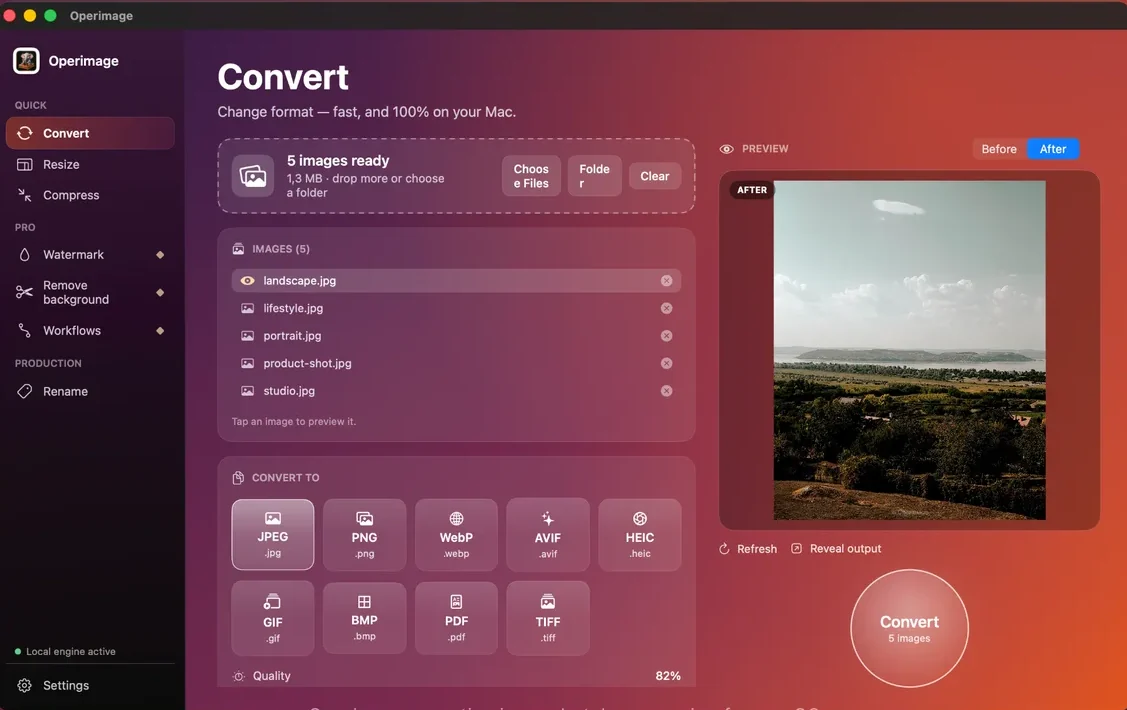
If your batches are everyday formats such as HEIC, JPEG, PNG, WebP, AVIF and TIFF, a Mac-native app with fewer settings can be faster to use. Operimage, a free Mac app, puts each job in its own tool with a Before/After preview, and adds compression to a file-size budget and on-device background removal. For help picking the output format itself, the hub on converting between image formats on Mac compares them all.
XnConvert
Every format, every action
- Reads 500+ formats, writes around 70
- About 80 chainable actions
- macOS, Windows and Linux
- Saved presets for repeat jobs
Operimage
Mac-native, one tool per job
- 9 output formats incl. WebP, AVIF, HEIC
- Compress to a target file size
- On-device background removal
- Before/After preview and saved Workflows
Verdict: Rare formats or a mixed Mac and Windows team: XnConvert. Common formats on a Mac, with fewer settings to manage: Operimage.
Where XnConvert is the better choice
XnConvert solves problems that a focused Mac app does not attempt. These are the cases where we would recommend staying with it, based on XnSoft's own description of the program.
- Unusual source formats: XnSoft lists support for reading over 500 formats, including camera RAW, PSD, JPEG XL and many older or specialized formats. If a file will not open anywhere else, try XnConvert.
- Many output formats: with around 70 writable formats, XnConvert covers targets that Operimage's nine do not.
- Cross-platform teams: the same program runs on macOS, Windows and Linux, so a preset built on one machine describes the same job on another.
- Fine-grained actions: around 80 actions covering transforms, color adjustments, filters and effects, applied in the order you list them.
- No batch limit: XnSoft states there is no limit on files per batch, and conversions run in parallel.
- Folder handling: the Output tab includes a Keep folder structure option and file name templates.
XnConvert vs Operimage compared
Rows are the jobs people run most often on photo folders. XnConvert values reflect XnSoft's official pages and documentation as of October 2026; where a feature could not be confirmed, the cell says Check current version.
XnConvert vs Operimage (as of October 2026)
| Job | XnConvert | Operimage |
|---|---|---|
| Convert formats | Yes, reads 500+, writes about 70 | Yes, 9 formats incl. WebP, AVIF, HEIC |
| Resize presets | Manual setup (resize action) | Yes, 6 social presets plus manual sizes |
| Compress to target file size | Check current version | Yes (AI optimizer) |
| Watermark | Yes (watermark action) | Yes (text or logo) |
| Rename | Yes (output file name template) | Yes, incl. SEO and shop packs |
| Background removal | Check current version | Yes, on-device |
| Keeps folder structure | Yes (Output option) | Yes |
| Works offline | Yes | Yes |
| Platforms | macOS, Windows, Linux | macOS 12+ only |
| Where to get it | XnSoft website, Mac App Store | Mac App Store (free) |
Why some Mac users want an alternative
XnConvert's interface reflects its scope. The Input, Actions and Output tabs expose a large number of options, and because the same program ships on three operating systems, it looks and behaves less like a typical Mac app than tools built only for macOS. People who use it daily get fast with it; people who open it once a month often spend the first few minutes finding the right setting again.
The other common reason is missing image-specific steps. When a marketplace caps uploads at a certain size, it is quicker to give an app the budget than to test quality levels. When product photos need clean cutouts, a background removal step saves a trip to another tool. Operimage includes both, alongside the usual convert, resize, watermark and rename steps.
Finally, some people prefer seeing the result before running a batch. In Operimage you click any file in the list and compare Before and After, so a wrong quality setting or crop shows up on one image, not after a thousand.
How to redo your XnConvert preset in Operimage
An XnConvert preset has three parts: the files on the Input tab, the ordered list on the Actions tab and the format and naming on the Output tab. Each maps to Operimage steps. Input becomes the files or folder you load. A Resize action becomes the Resize tool, with a social preset or exact width and height in Manual resize; the guide to resizing a whole folder of photos at once explains fit versus fill. A Watermark action becomes the Watermark tool, with text or a logo, placement, opacity, size and padding.
The Output tab's format and quality become the Convert tool's format menu and quality slider. The file name template becomes the Rename tool, whose live preview shows each new name before writing. Keep folder structure is an option in Operimage too. Once the steps match, save them as a Workflow so the next folder reruns them in order. Actions with no Operimage equivalent, such as color filters or effects, are the sign that a preset should stay in XnConvert.
Switching in 10 minutes
Move one preset first, ideally the one you run most often with common formats. If it reproduces cleanly, move the others that fit; leave rare-format and filter-heavy presets in XnConvert.
Switching in 10 minutes
- Export or screenshot your most-used XnConvert preset: actions and Output tab
- Install Operimage from the Mac App Store and load the same input folder
- Map each action to Convert, Resize, Compress, Watermark or Rename
- Turn on keeping the folder structure if your preset used it
- Compare 20 outputs from both apps for size, sharpness and names
- Save the chain as a Workflow
- Keep XnConvert for rare formats and filter or effect actions
What to check when comparing outputs
Different converters use different encoders, so the same quality number does not produce identical files. Before moving a recurring job, run 20 representative images through both apps with matching settings and compare the results rather than the numbers.
Pick images that stress the encoder: a portrait with hair, a product shot with a smooth gradient background, a screenshot with small text and an iPhone photo in Display P3. If Operimage's output looks the same at a similar file size, the switch is safe for that job. If it does not, adjust the quality slider and press Refresh in the Before/After view until it does.
- File size: sort both output folders by size in Finder and compare the totals.
- Detail: zoom to 100% on hair, fabric and text edges, where compression artifacts appear first.
- Color: compare skin tones and brand colors; web images look most consistent in sRGB.
- Metadata: open a result in Preview and use Tools → Show Inspector to see whether EXIF and GPS data were kept.
- Names and folders: confirm that file names, extensions and subfolders match what the next step expects.
- 120 test imagesPortraits, products, text, P3 photos
- 2Both appsSame format, similar quality
- 3CompareSize, detail, color, metadata
- 4DecideMove the preset or keep it
Large folders and repeat jobs
Both apps are built for volume. XnSoft states that XnConvert has no limit on the number of files per batch and processes them in parallel, and its presets can be saved and reused. Operimage also handles very large folders, keeps the source folder structure when asked and does not overwrite originals unless you choose to.
The difference is how a repeat job is stored. An XnConvert preset holds the whole action list and Output tab in one place. An Operimage Workflow holds a chain of tool steps, such as resize → compress → rename, that you rerun on the next folder. If several people run the same job, the Workflow's step-by-step layout, with each tool's settings visible on its own, tends to be easier to hand over.
Common jobs, done the Mac-native way
Most weekly batches on a Mac fall into a few patterns. These are the ones where people most often move from XnConvert to a focused tool, with the Operimage settings that replace the preset.
- iPhone photos to JPEG: Convert, JPEG at 82–85%. The HEIC conversion hub covers HEIC compatibility and Live Photos.
- Web images to AVIF: Convert, AVIF; start lower than JPEG quality and compare. The walkthrough on making AVIF files from JPGs covers settings and browser support.
- Upload limits: Compress with Target file size (AI optimizer) set to the limit, for example 500 KB, instead of testing quality levels one by one. The guide to shrinking photos on Mac without losing quality explains which budgets are realistic.
- Scans and archives: the guide to turning TIFF scans into JPGs covers CMYK, layers and 16-bit files.
- Privacy: enable metadata stripping in Compress to remove EXIF and GPS before publishing.
When to keep XnConvert, and when to use both
Keep XnConvert if you regularly open formats that macOS does not read, if you need filters and effects as batch steps, or if colleagues on Windows or Linux run the same presets. Its breadth is the reason it has been a long-standing recommendation for batch conversion.
There is also no need to choose based on output quality alone. Both apps write standard JPEG, PNG, WebP and TIFF files that any browser, marketplace or editor opens. The deciding factors are format coverage, platform and how much setup each recurring job needs. If you mostly convert iPhone photos and web images on one Mac, a focused tool removes steps; if you work across operating systems and unusual file types, XnConvert's breadth removes problems.
Using both is common. XnConvert handles the rare-format and effect-heavy jobs; a Mac-native app handles the frequent, common-format batches with a preview and saved Workflows. For a side-by-side look at the other options, including Preview, Permute and Retrobatch, read the roundup of offline image converters for Mac.
Step by step
Note your XnConvert actions
Open your XnConvert preset and write down the actions in order and the Output tab settings: format, quality, file name template and folder options.
Load the same files
Open Operimage, choose the first tool you need and drag in the files or click Folder to load a directory with its subfolders.
Set the equivalent steps
Use Convert for format and quality, Resize for dimensions, Compress for quality or a target file size, Watermark for text or logo, and Rename for file names.
Preview one image
Click a file in the image list to compare Before and After, and press Refresh after adjusting a setting.
Run the batch and reveal the output
Click the round action button, then Reveal output to check files and subfolders in Finder.
Save the recipe
Save the steps as a Workflow so the same job reruns on the next folder.
FAQ
Is XnConvert available for Mac?
Yes. XnSoft publishes XnConvert for macOS, Windows and Linux, and it runs on both Intel and Apple Silicon Macs.
Is XnConvert free?
XnSoft describes XnConvert as free for private, educational and non-profit use. Business users should check XnSoft's current terms.
What is a simpler alternative to XnConvert on Mac?
Operimage is a free, Mac-native batch app with one tool per job, Before/After preview and saved Workflows. It covers nine common output formats rather than XnConvert's long format list.
How many formats does XnConvert support?
XnSoft lists more than 500 formats that XnConvert can read and around 70 that it can write.
Can XnConvert keep the folder structure?
Yes. The Output tab has a Keep folder structure option. Operimage can also keep the source folder structure when processing a folder.
Do XnConvert and Operimage work offline?
Yes. Both convert images locally on your computer without uploading them.